The chart, part by part
The five regions of the screen — strip, rail, stage, side lists, status line — and what every button in them does, with a link to the page of each part.
The screen has five regions, and nothing in them moves when you change the mode or the screen density. This page names every control once and points to the page that explains it. If you would rather see it on the chart itself, More › Tour of the chart walks through the same parts, or open the tour now.
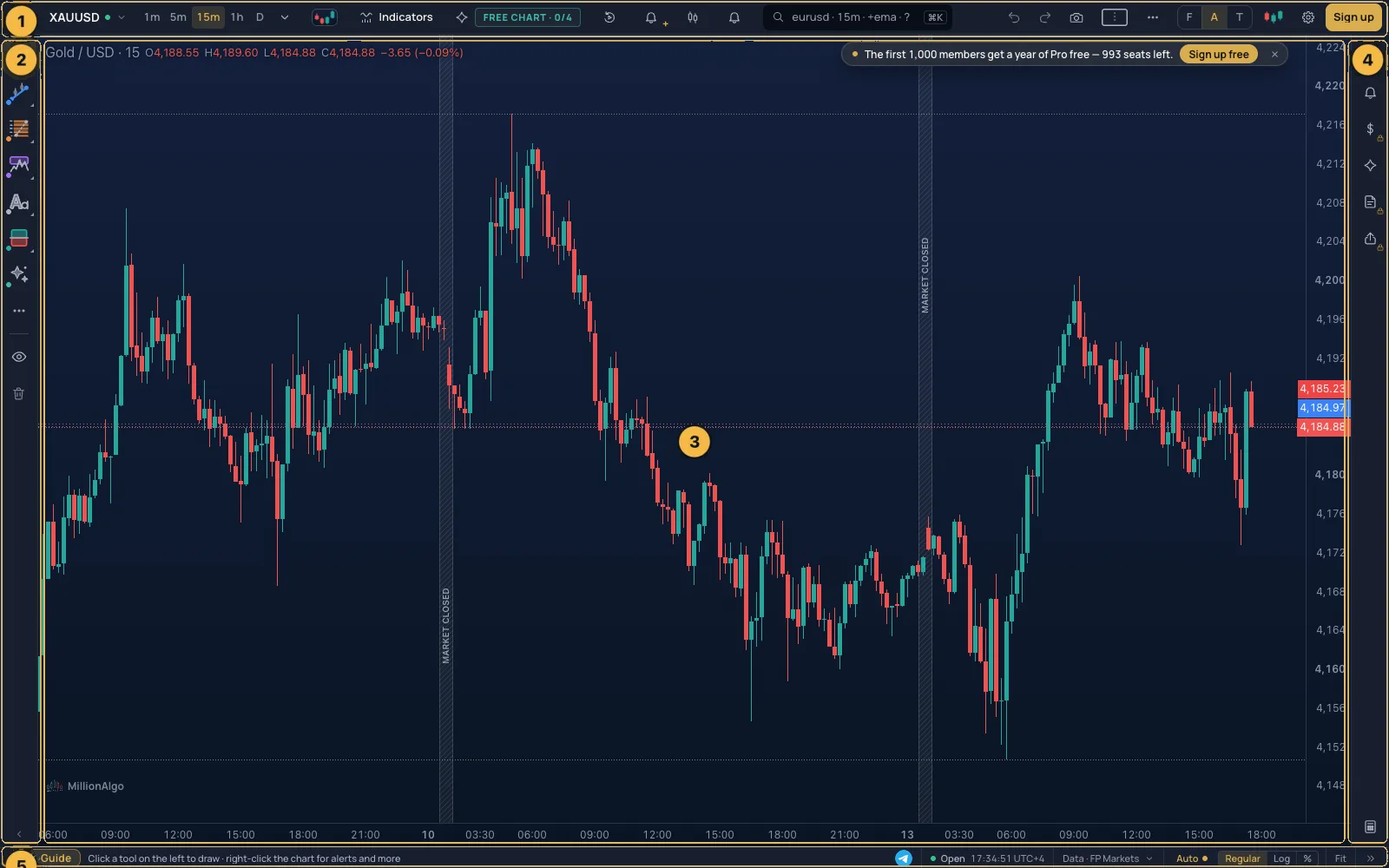
1. The strip#
The bar across the top. Its left half is about what you are looking at, its right half about how.

| Control | What it does | Page |
|---|---|---|
| The logo | Back to the home page | — |
| Symbol (the name with a dot) | Opens the search; the dot is green while that market is open | Symbols and markets |
| Timeframes (the chips and the chevron) | How much time one candle covers; the chevron lists every timeframe | Timeframes |
| Chart type (the small candle picture) | Candles, bars, lines, Renko, profiles, order flow — 21 types | Chart types |
| Indicators | The indicators panel; the number is how many are on the chart | The indicators panel |
| Signals | The four MillionAlgo studies and your access to them | The MillionAlgo studies |
| Replay | Starts and leaves bar replay | Bar replay |
| Price alerts and Replay results (when the strip is wide enough) | Adds a price alert on this symbol; opens your practice trades from replay | Alerts, Bar replay |
| Alerts (the bell) | Every alert on the account and where they are delivered | Alerts |
| Search | One box for symbols, timeframes, indicators, tools and commands — Ctrl+K | Keys |
| Sell · Buy (Trade mode, members) | Arm the practice ticket at the live bid and ask — they never send by themselves | Paper trading |
| Undo · Redo | The last drawing change, back and forth — Ctrl+Z | Drawing tools |
| Snapshot (the camera; under More on the Guided screen) | A picture or a link of the chart | Snapshots and ideas |
| Chart grid (the small grid picture) | Several charts on one screen | Layouts and the chart grid |
| More (…) | Everything that is not in the strip: replay results, ideas, notifications, keys, the tour, tips, full screen, the Guided / Pro screen, the keys preset | Look and settings |
| Save and the chevron (members) | Saves the layout; the chevron lists your layouts and their versions | Layouts and the chart grid |
| Mode (F · A · T) | Focus, Analyse, Trade — which regions are open | below |
| Look (the theme mark) | Themes, candle colours, background | Look and settings |
| Chart settings (the gear) | Scales, grid, legend, sessions, time zone | Look and settings |
| Sign up or your avatar | Sign up or log in; a member's account menu | Signing up and in, Your account |
When the window is narrow the strip folds its right-hand buttons into More, in a fixed order, so a button is never lost — only moved.
2. The rail#
The drawing tools, at the left, in groups: the cursor, then Lines, Fibonacci, Shapes, Text & notes, Trade & measure, the Auto helpers (lines and levels the chart finds for you), and a More tools tile with the patterns, emoji, measure, zoom to an area, the magnet and lock-all. Under them the eye hides drawings, indicators or positions, and the bin removes all drawings. The chevron at the bottom folds the rail away; a Tools tab at the edge brings it back.
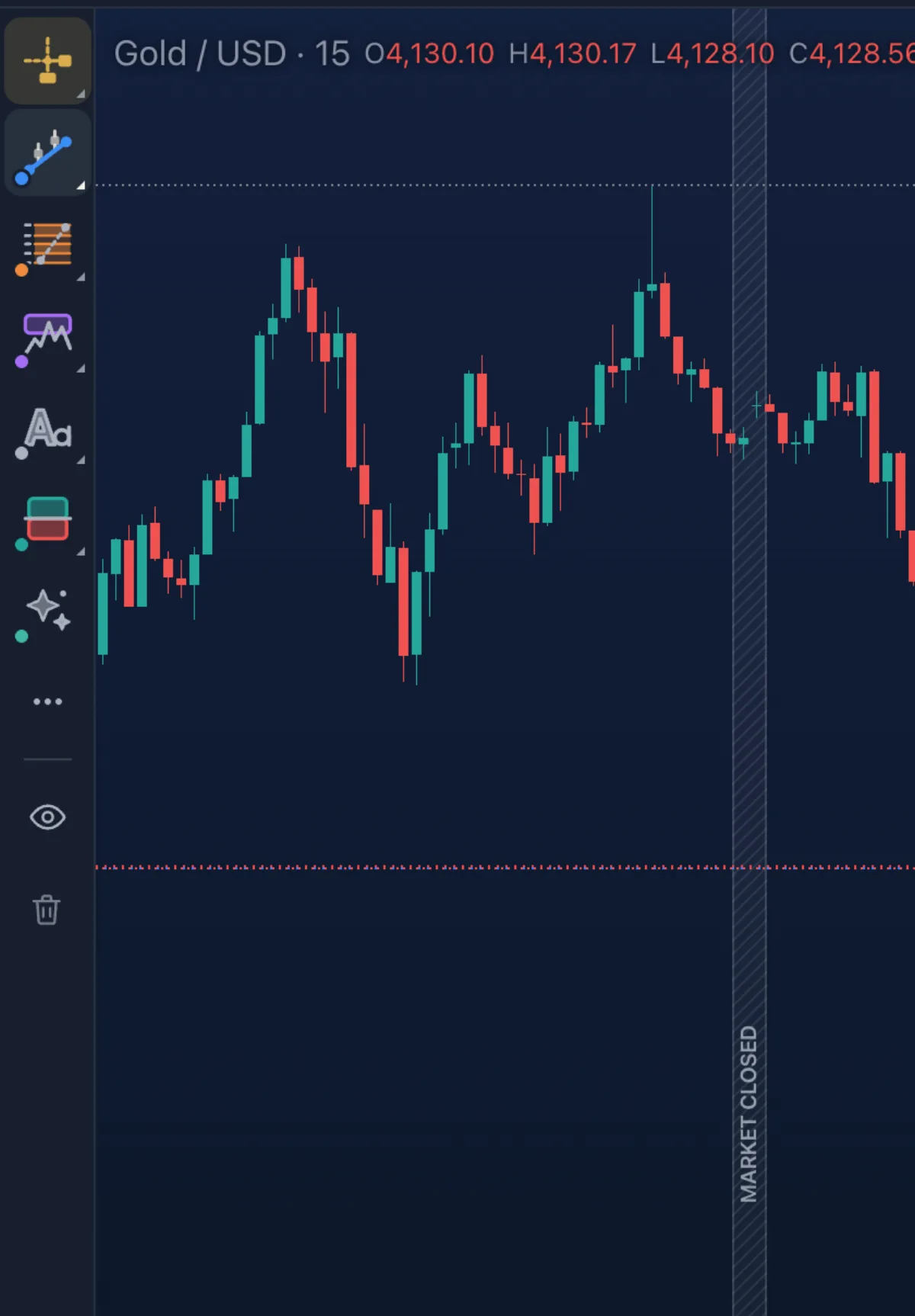
How drawing works — picking, placing, selecting, the settings card, favourites, keys — is on Drawing tools, and every tool has its own entry in that section.
3. The stage#
The chart itself.
- The legend, top left: the symbol and its OHLC readout, then a chip for every indicator (click for settings, the dot hides, × removes, drag reorders). The chevron folds the legend.
- The price scale, right: drag it to stretch or squeeze the prices, double-click to reset. The coloured tags are the last price, and the bid and ask. The scale's mode — auto, log, percent — is set in the status line.
- The time scale, bottom: drag it to zoom in time; the mouse wheel zooms, dragging the chart pans, End jumps back to the latest candle.
- The crosshair follows the pointer with its price and time; the readout at the top left follows the candle under it.
- Right-click anywhere for the menu of what is under the pointer: an alert at that price, a drawing's settings, an indicator's options, the chart's own options.
- Market closed bands mark the hours the market did not trade.
- Panes: an indicator that does not draw over the candles gets its own pane below; drag the line between panes to resize.
Everything on the stage obeys the keyboard too: see Keys.
4. The side rail and lists#
Three buttons at the right open one list at a time, docked beside the chart (or over it when the window is narrow); drag the list's edge to resize it, double-click the edge to reset.
- Watchlist — your symbols with live quotes: Watchlist.
- Alerts — the alerts on this symbol: Alerts.
- Trade — the practice trading panel, locked for guests: Paper trading.
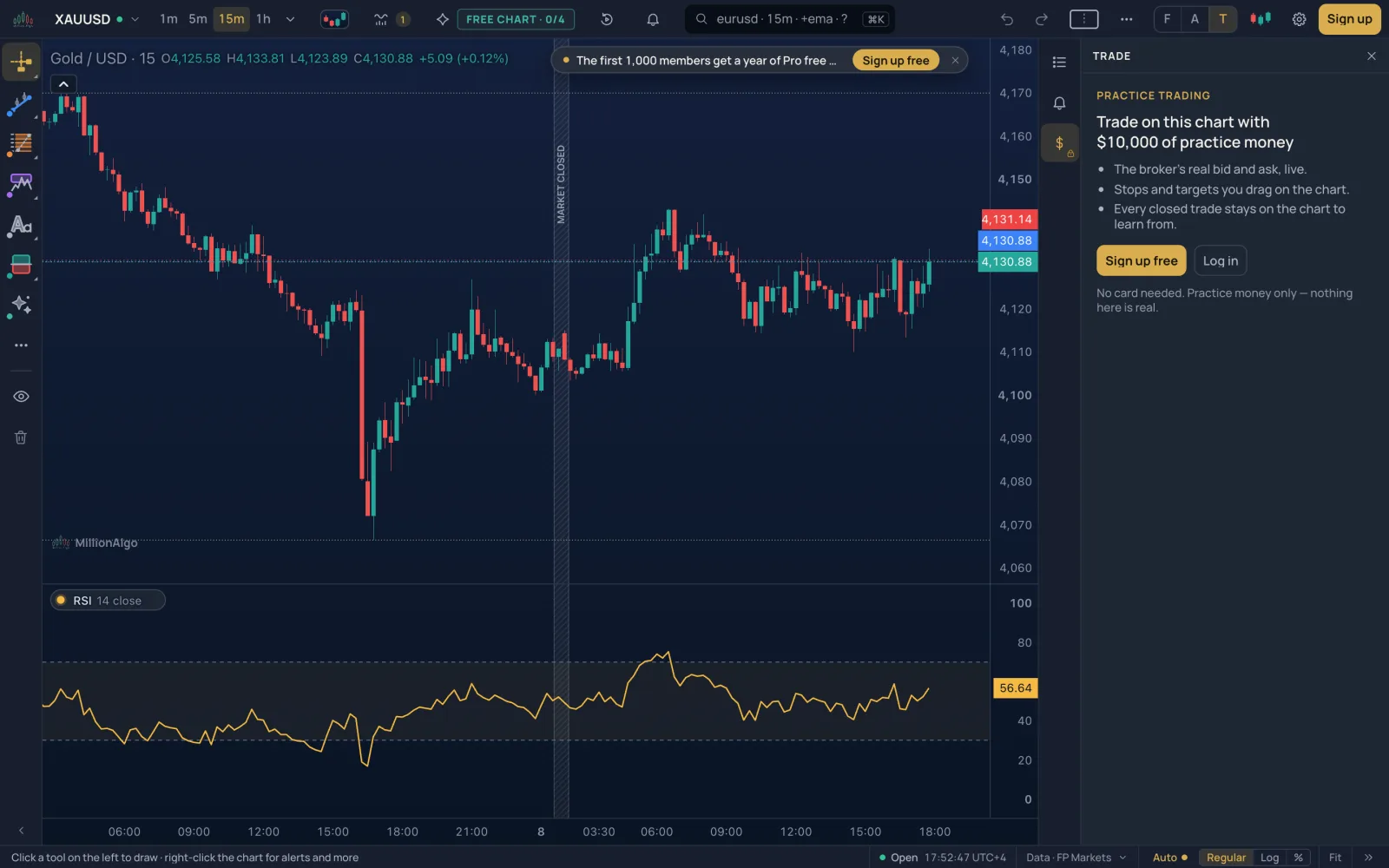
5. The status line#
The bar along the bottom.

- The hint at the left says what the armed tool will do, or what the last key did.
- The grid chip (with several charts) opens the grid picker.
- The clock shows the chart's time zone and whether the session is open; click it to change the time zone.
- Data says where the prices come from — the broker feeding this symbol.
- Auto and Regular · Log · % set the price scale; Fit brings every candle on screen; the last button jumps to the latest bar.
Modes and screens#
Mode (the F · A · T switch in the strip) decides which regions are open: Focus leaves the chart alone and folds the rail and the lists to the edges; Analyse, the default, has the tools at the left and the lists at the right; Trade opens the practice ticket and the Sell and Buy pills. The screen (More › Screen) is a separate choice: Guided has larger controls, a hint while you draw and a question before anything is deleted; Pro is tighter, gives every tool a one-letter key, and deletes at once with Undo. Neither moves a control.
On a phone#
Below about 900 px the same chart is laid out for a thumb: the symbol and timeframe in a compact strip, and an action bar at the bottom with Draw, Indicators, Charts, Signals, Lists and More. See On a phone.