Emoji
The sticker tool: the fixed set of 40 emoji, the Recent row, placing and resizing one, and what it is good for on a chart.
An emoji is a sticker on the chart: one click puts a rocket, a target or a warning sign at a candle. It is one tool with a fixed set of pictures, not a keyboard — the same forty on every device. You reach it from the Emoji row at the end of the Text & notes list on the rail at the left (Shift+N in the Pro screen); in Guided it is also a row of More tools, the tile with three dots. On a phone tap Draw, then Emoji, and read "tap" wherever this page says "click". Picking a picture arms the tool with it. The emoji panel has no star: the favourites bar holds tools, and here the picture is what you choose each time. Selecting, moving, locking, hiding and undo work as for every drawing: see Drawing on the chart.
Emoji#
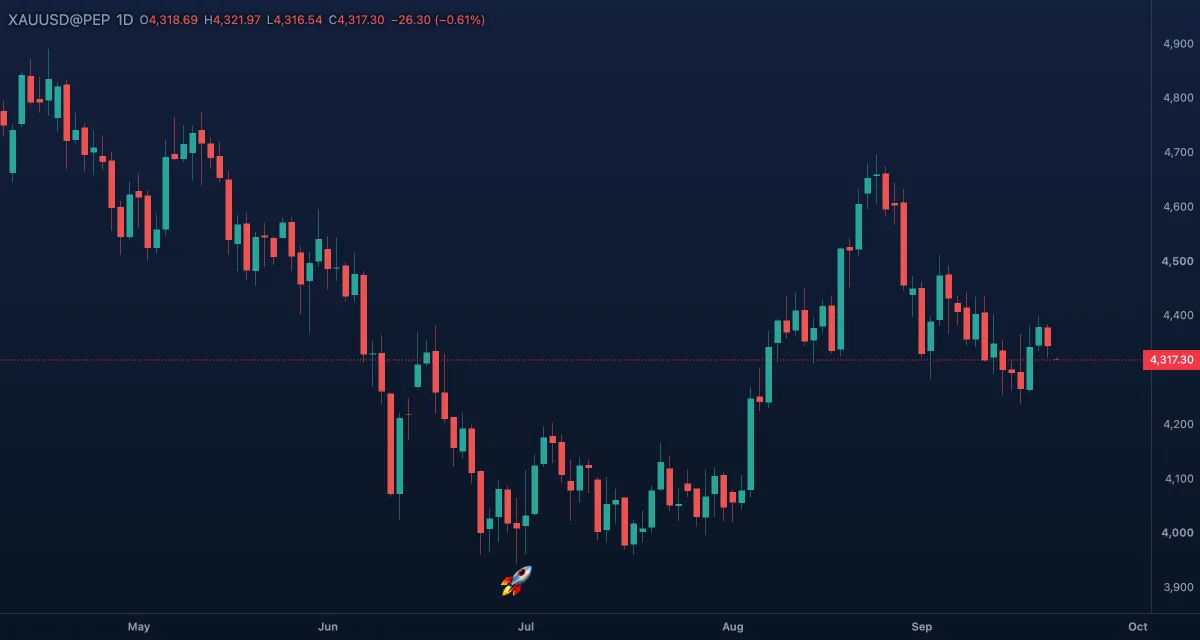
What it draws. One picture from the set below, centred on the point you click, 28 pixels tall by default.
What it is for. A mark that reads faster than a word: a rocket on the breakout candle, a target where the trade closed, a warning sign on a news candle. A snapshot full of stickers needs no language, which makes them the friendliest marks for a group. Keep it to a few per chart, or they hide the candles they point at.
How to draw it. Open the panel, click a picture, then click where the emoji goes — one click, no second point. The panel closes after the pick; open it again for the next one. Drag the emoji's handle to move it, the small handle at its bottom-right corner to resize it. Esc puts the tool down. A double-click opens the Inspector, the drawing's settings card, where the Emoji grid swaps the picture and Size steps it by 2.
Settings. Emoji (the picture) and Size 28, from 12 to 160. An emoji has no colour, width or text of its own; to add a word, put a Text next to it.
Example. After a bar replay session on gold, put a trophy on the trade that worked and a brain on the one you should have skipped; the snapshot tells you which habit to keep.
The set#
The forty pictures, in the panel's order: 🚀 📈 📉 💰 💎 🔥 🎯 ⭐ ✅ ❌ ⚠️ ❗ ❓ 💡 📌 🔔 🐂 🐻 🟢 🔴 ⬆️ ⬇️ ➡️ ⬅️ 👍 👎 👀 💪 🙏 🏆 🧠 ⏰ 💥 ✨ 🛑 📊 😀 😎 🤔 😱. It is the same on every device, and there is no way to add or type another one.
The Recent row#
The panel opens with a Recent row above the full set: the last eight pictures you placed, so the two or three you really use are one click away. Until you have placed one, the row reads "The ones you use show up here." It is kept in this browser, like the last tool of each rail group, and only ever holds pictures from the set. On a phone, the Emoji tab of the Draw sheet shows the same Recent row and the same forty.