MillionAlgo VIP V6
What VIP V6 draws (signals, stop and targets, trend layers, dashboard, win-rate table), its presets and settings on MillionChart, and an example on gold.
VIP V6 is MillionAlgo's complete setup engine: it finds Buy and Sell setups, grades each one, draws the entry, stop and targets as a ladder on the chart, colours the candles, and keeps its own dashboard and win-rate table in the corners. It comes with MillionChart Pro, a MillionAlgo indicator plan, the founders' year or the free Pro month; see Plans. It is computed on our server, so it needs a connection, and it is not served on seconds and tick charts yet.
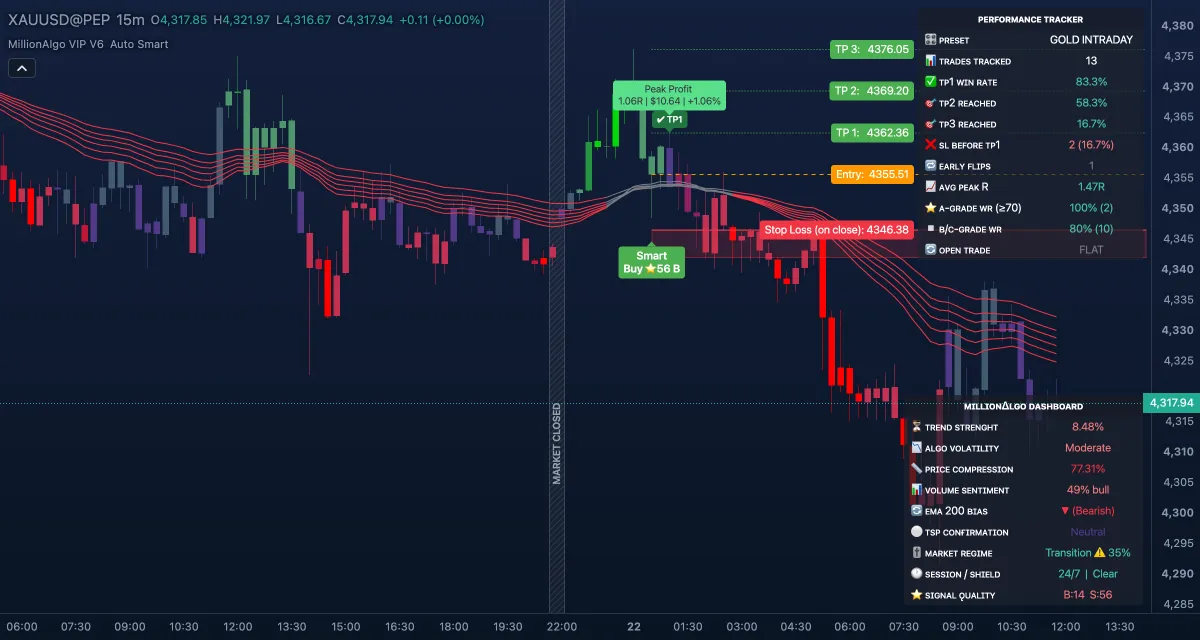
What it shows#
- Buy signal and Sell signal — a label under or over the signal bar, with a quality score out of 100 and a grade when Show Score on Signal Label is on; a Smart, Breakout or Pullback signal names the model that produced it.
- The trade ladder — for the latest signal, lines to the right edge for the entry, the stop (Stop Loss, red) and TP 1, TP 2, TP 3 (green), each with its price; optional Bonus TPs; and an SL → BE tag once the stop has moved to break-even after TP1.
- ✔ TP1 / TP2 / TP3 and ✖ SL marks where a tracked setup reached a target or was stopped, and a Peak Profit label with the best R, dollars and percent it reached.
- Candle colour — the candles recoloured by Candle Color Type (by default Signal Strength).
- Trend Ribbon — six EMAs (30 to 60) coloured by trend. The optional layers: Smart Trail, Trend Catcher, VWAP, Moving Average, Velocity Line, AI Trend Lines, the Quantum Cloud, the Trend cloud, the Range Filter, Reversal triangles and the LH-LL / HL-HH swing markers.
- ⏸ RANGE / ▶ TREND labels and a grey Ranging Market Background when the regime filter sees a sideways market; both are off by default on MillionChart.
- MillionAlgo Dashboard (bottom right) — trend strength, volatility, price compression, volume sentiment, EMA bias, TSP confirmation, market regime, session and shield state, and the current bull and bear quality scores.
- Performance Tracker (top right) — the preset, trades tracked, TP1 win rate, TP2 and TP3 reached, stops before TP1, early flips, average peak R, win rate by grade, and the open trade with its live R.
Signals and marks are placed only once their bar has closed.
How it is calculated#
The Preset chooses the whole parameter set: Auto (Symbol + Timeframe) picks a gold or a crypto ladder for the chart you are on (gold's is also used for forex and indices); the other presets fix it for scalp, intraday or swing timeframes, and Manual uses the settings below it. A setup starts from the chosen Signal Type, passes the Market Regime Filter, the Signal Quality score and the Fakeout Shield, and respects Min Bars Between Signals. The Entry timing decides whether the setup is taken at the signal bar's close, on a retest or after follow-through; the Target profile sets the targets in R (multiples of the stop distance); the Stop Loss Mode places the stop from structure, volatility or the trail. The tracker then follows each setup bar by bar to fill the win-rate table. MillionChart's MillionChart tuning switch, on by default, turns the preset's trend and session filters off, sets the minimum score to 50 and the regime filter to Loose; it gives many more signals and was measured on live gold, BTC and EURUSD bars.
How traders use it#
- Read the score and grade on the label first: most members act only on high-grade setups and let the rest pass, and the tracker's A-grade WR row tells you how that policy has done on this chart.
- Use the ladder as the plan: entry, stop and TP1 are drawn; a trade that reaches TP1 with the stop moved to break-even is the setup's base case.
- Check the dashboard before entering: a Ranging regime, a session that is off, or a shield reason other than Clear explains why no signal is coming, and warns against forcing one.
- Pair the signals with the trend layers: a Buy with a green ribbon is a with-trend setup; a Buy under a red ribbon is a counter-trend one and deserves a smaller size.
- Watch out for two things. The Performance Tracker counts past setups on this chart with the current settings — it is not a promise about the next one, and it changes when a setting does. And with every layer on the chart is hard to read: keep the ribbon and the ladder, and turn the rest on only when you use it.
Settings#
The Inspector lists every input under the groups below; each row names a group, its main settings and their defaults.
| Setting | Default | What it changes |
|---|---|---|
| MillionAlgo Presets (V6): Preset, MillionChart tuning | Auto (Symbol + Timeframe) · on | The parameter set, and the measured MillionChart relaxation of its filters. |
| Signal Settings: Signal Type, Sensitivity, Stop Loss Sensitivity, R:R, the Entry, TP 1–3, Bonus TPs and StopLoss switches | Smart · 3.5 · Moderate (balanced) · 1.0 · all on | Which model fires, how eager it is, how far the stop sits, and which parts of the ladder are drawn. |
| Stop Loss Logic: Stop Loss Mode, Min / Max distance (ATR), If structure is wider than max | Smart Hybrid · 1.0 / 4.0 · Accept the wide stop | Where the stop is placed and what happens when structure is far away. |
| Market Regime Filter: Block Signals in Ranging Market, Strictness | on · Moderate | Blocks setups while the market is sideways; labels and a background can show the regime. |
| Trading Session Filter | off | Only signal in London, New York or Asia hours, and skip the first 15 minutes of a session. |
| Entry Model (V6.2): Entry timing, Target profile | Auto (measured per timeframe) · Balanced (0.75R) | When the setup is entered and where the targets sit. |
| Signal Quality: Min Signal Quality Score, Min Bars Between Signals, Fakeout Shield and its checks | 50 · 5 · Auto (from preset) | Hides setups under the score, spaces them out, and blocks the classic fakeout shapes. |
| Analysis Toolkit | Candle Color Type: Signal Strength · Trend Ribbon on · the rest off | The optional layers listed above and the candle colouring. |
| Trend Filter | off | A fast and a slow higher timeframe (EMA 50 / 200 of their closes) that a signal must agree with; Auto picks them per chart. |
| Dashboard, Performance Tracker (V6) | on, Bottom Right, Small · on, Top Right, last 100 trades | The two tables, their place and size, the break-even and same-bar rules, and which TP / SL hits are marked. |
| Method Lab (V6.3), Peak Profit | off · on, $1,000 account, 1 % risk | A table comparing entry and target methods; the Peak Profit label in your account's money. |
| Colours and style | — | Each line, cloud and mark has a row under Lines in the Inspector. |
Example on gold#
For example, on the 15-minute chart gold has pulled back to $4,296 inside a day that opened at $4,280 and rose to $4,312. The ribbon is green, the dashboard reads Trending and London ✅, and a Smart Buy label with a score of 74 appears under a candle with the ladder drawn: entry $4,298, stop $4,290, TP1 $4,304, TP2 and TP3 above. The plan is the ladder as drawn: buy, stop at $4,290, take part at TP1 and let the stop move to break-even. A Sell label, or a close below $4,290 with the ✖ SL mark, ends it; a Ranging ⏸ regime on the dashboard before the entry would have been a reason to skip it.
Add it to your chart#
- Click Indicators in the top strip (on the Pro screen, press I), or click Signals and turn MillionAlgo VIP V6 on.
- Type
vipand click the indicator. The chip in the legend then reads the preset and the signal type, for example Auto Smart. - Click its chip in the legend to open the Inspector and change the settings; drag the chip to reorder; the dot hides it; × removes it.
Related#
- Lightning Strike, Motion Matrix, Smart Money — the other MillionAlgo studies
- Supertrend and EMA — the building blocks of the trail and the ribbon
- Alerts — an alert on a V6 setup
- Bar replay — watch past setups draw candle by candle
- Adding and tuning indicators