Your first chart in five minutes
A symbol, a timeframe, a chart type, one indicator, one trend line, one alert and a saved layout — the first chart, step by step, with the exact buttons.
This page walks you through one complete chart, with the exact names of the buttons. Nothing here needs an account until the last two steps; if you have one, everything is kept as you go. Each step links to the page that explains the part in depth.
1. Pick a symbol#
Click the symbol name at the top left of the strip (it says XAUUSD on a fresh chart: gold against the US dollar). The search opens. Type a few letters — eur, nas, btc, oil — and click the row you want, or press Enter for the first one. The same search opens from anywhere with Ctrl+K (⌘+K on a Mac).
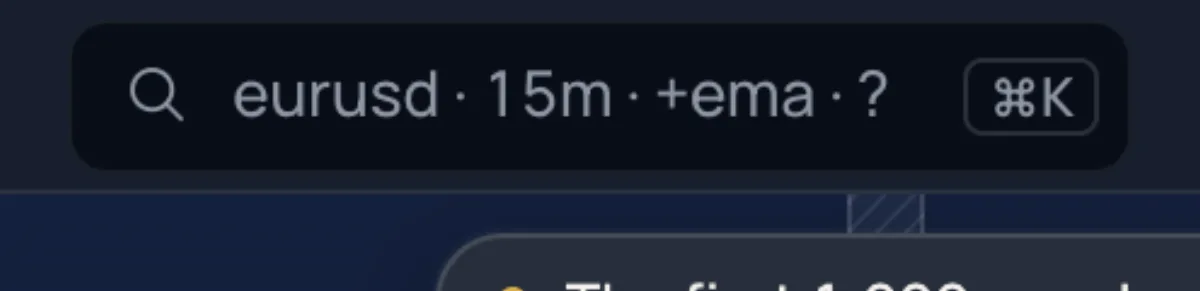
A symbol can come from more than one broker; the row shows which. The green or grey dot next to the name tells you whether that market is open right now. More on Symbols and markets.
2. Pick a timeframe#
The chips next to the symbol — 1m · 5m · 15m · 1h on a new chart — set how much time one candle covers. Click one. The chevron after them opens the full list: seconds, minutes, hours, days, weeks, months, tick charts, and a box for your own timeframe such as 7m or 3D. Star the ones you use and they become chips.
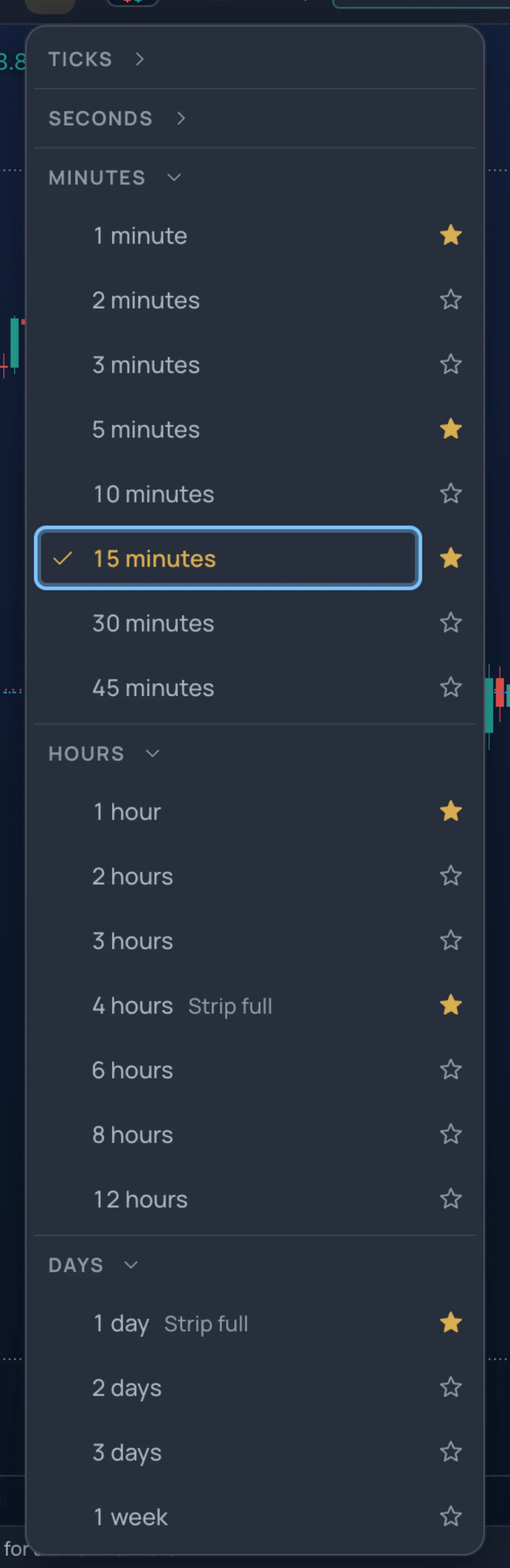
More on Timeframes.
3. Pick a chart type#
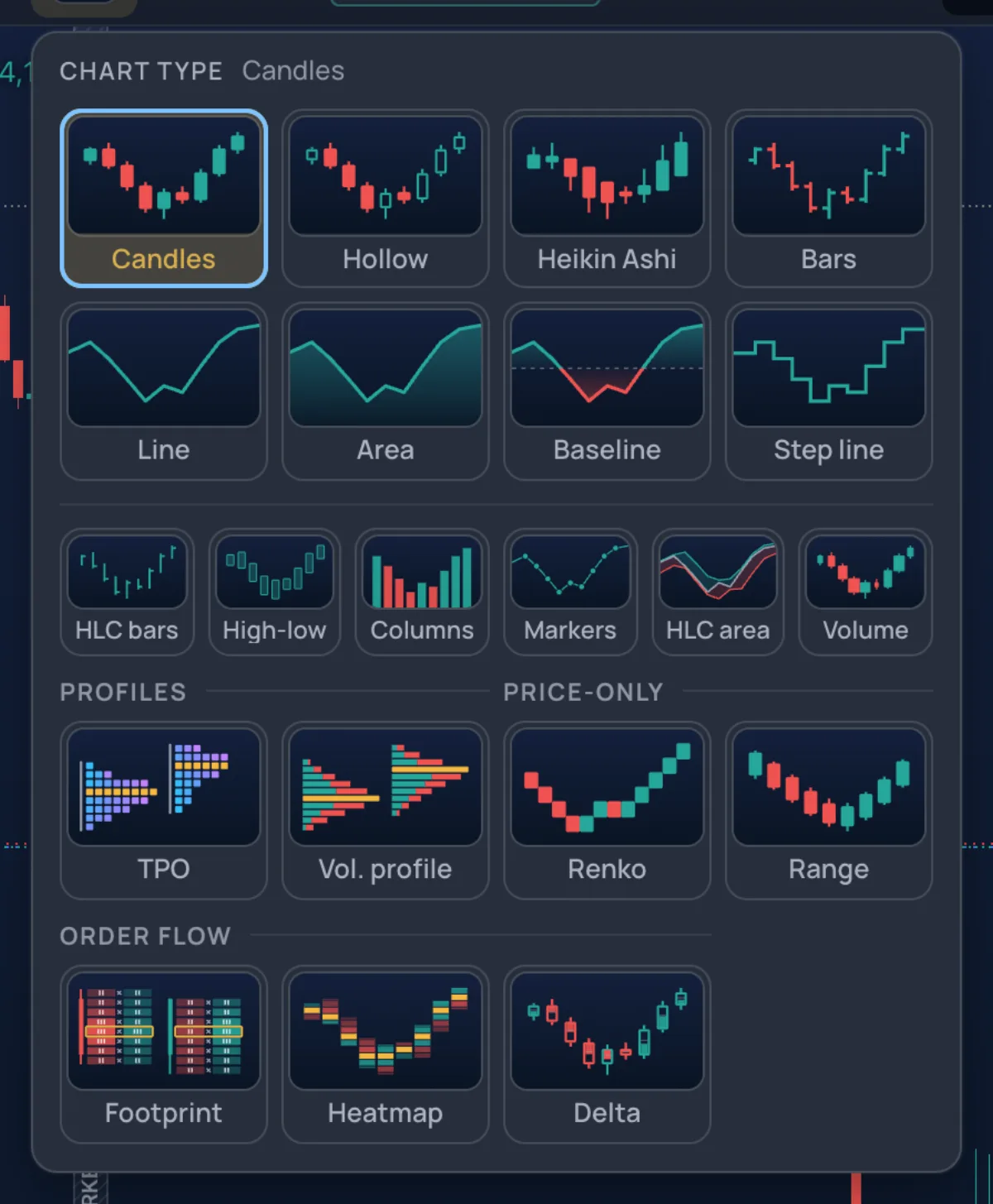
The small candle picture after the timeframes is the chart type. Click it: candles, hollow candles, Heikin Ashi, bars, lines, areas, Renko, range bars, the profiles (TPO, session volume profile) and the order-flow types (footprint, candle heatmap, delta candles). Candles are the right start; the others are explained on Chart types.
4. Add one indicator#
Click Indicators in the strip. Type ema 21 in the search box and press Enter: a 21-period exponential moving average appears over the candles. Try rsi the same way: it opens in its own pane under the chart. The panel also has one-press buttons under Quick add (EMA 9 / 21 / 50 / 200, VWAP, RSI, MACD, Bollinger, ATR, Volume), ready-made sets, and the whole catalogue by group.
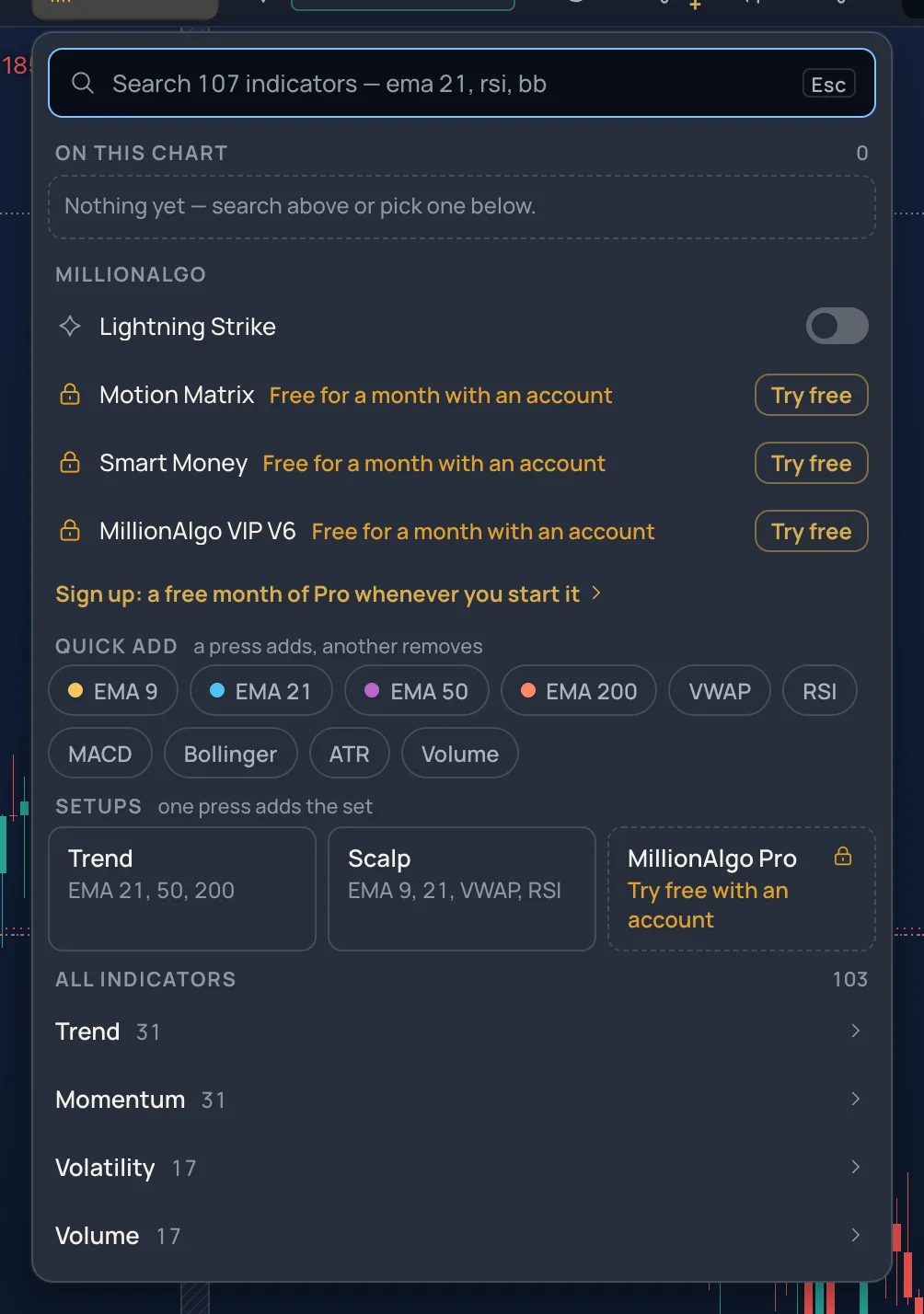
Every indicator you add gets a chip in the legend at the top left of the chart. Click the chip and its settings card opens; the dot in front of it hides and shows the indicator; the × removes it.
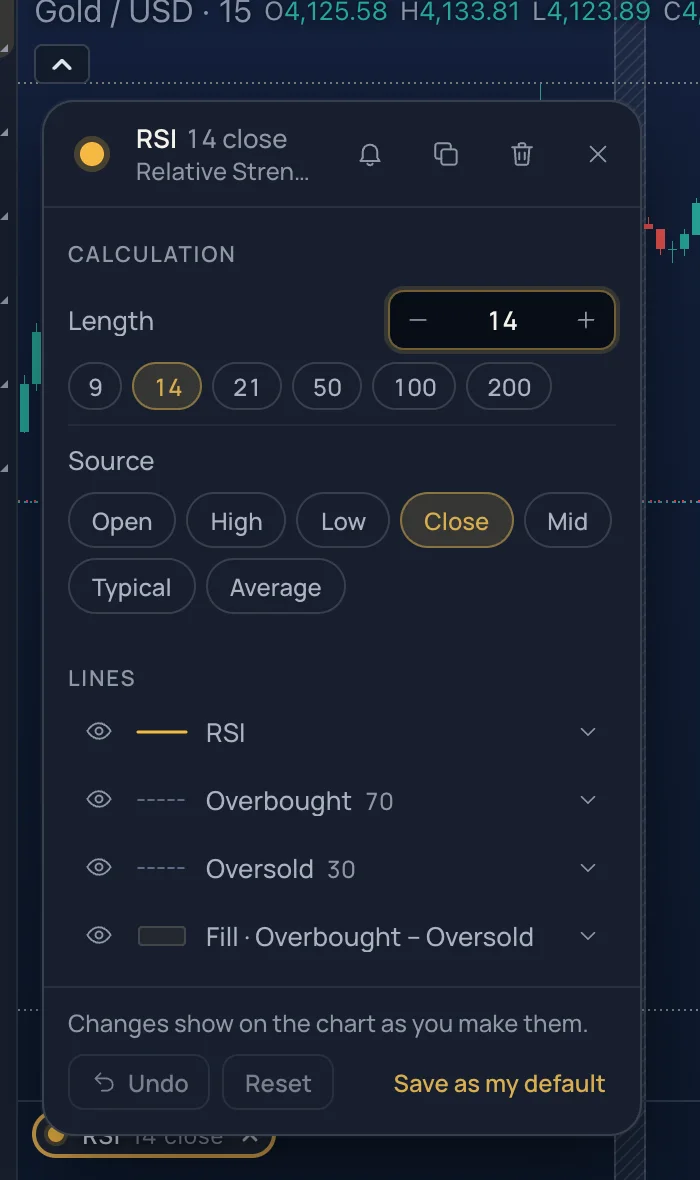
More on The indicators panel and, for each indicator, Indicators.
5. Draw one line#
On the rail at the left, move the pointer over the Lines tile and click Trend line. Click a low on the chart, then a later, higher low: the line is drawn through the two points and stays. The chart reads the line for you — it writes how many times the price touched it. Click the line to select it; drag an end to move a point, drag the middle to move the whole line; double-click it for its colour, width and style. Esc stops drawing, Delete removes the selected line, Ctrl+Z undoes.
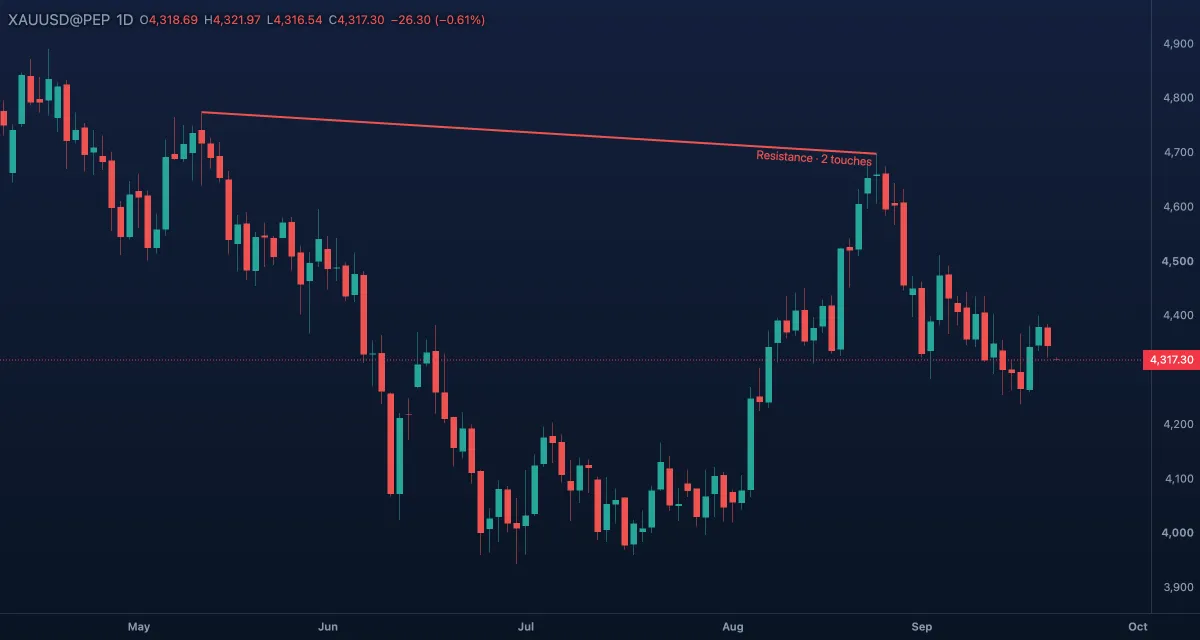
Every tool is explained in Drawing tools.
6. Set one alert#
Open the Alerts list at the right (the bell on the side rail). Type a price, or right-click the chart at the price you want and choose the alert, and the chart draws an amber line there. When the price crosses it, you get a toast and a chime in the tab — and, with an account and Telegram connected, a message with a picture of the chart on your phone. Alerts on indicators and on your drawings work the same way from the alert dialog.
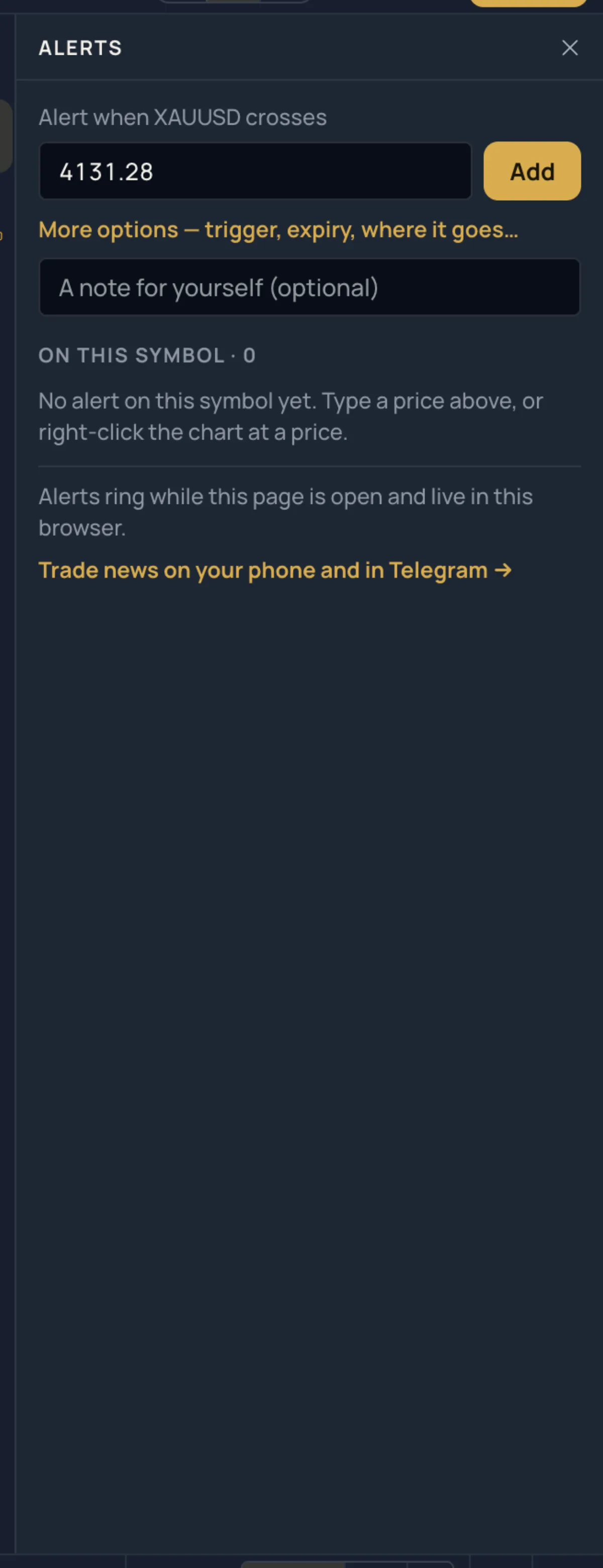
More on Alerts.
7. Save the layout (members)#
With an account, press Ctrl+S or click Save at the right of the strip. The layout — symbol, timeframe, chart type, indicators and every drawing — is kept and comes back on any device. The chevron next to Save lists your layouts and their earlier versions. More on Layouts and the chart grid.
8. Take a snapshot#
More › Snapshot (or the camera in the strip on the Pro screen) downloads a picture of the chart, copies a link to a page anyone can open, or shares it to Telegram or X. With an account you can publish the chart as an idea for other traders to follow. More on Snapshots and ideas.
What to try next#
- Bar replay: pick a day in the past, hide the future, and trade it candle by candle.
- Paper trading: the practice account at the real bid and ask.
- Keys: press ? on the chart for the list.
- On a phone: the same chart with the actions at your thumb.