Signing up and signing in
Create your MillionChart account with Google or an e-mail code, sign in, reset a lost password, pick your language, and see what works without an account.
A MillionChart account is free, and it keeps your work — layouts, alerts, paper trades and ideas — on every device you sign in from. This page takes you from the Sign up button to your first signed-in chart, and shows what you can already do before you have an account.
What it is#
Your account is a MillionAlgo account: one e-mail and password open both millionchart.com and portal.millionalgo.com, and your paper-trading account, layouts, alerts and plan hang on it. Signing in on one site does not sign you in on the other.
Where it is#
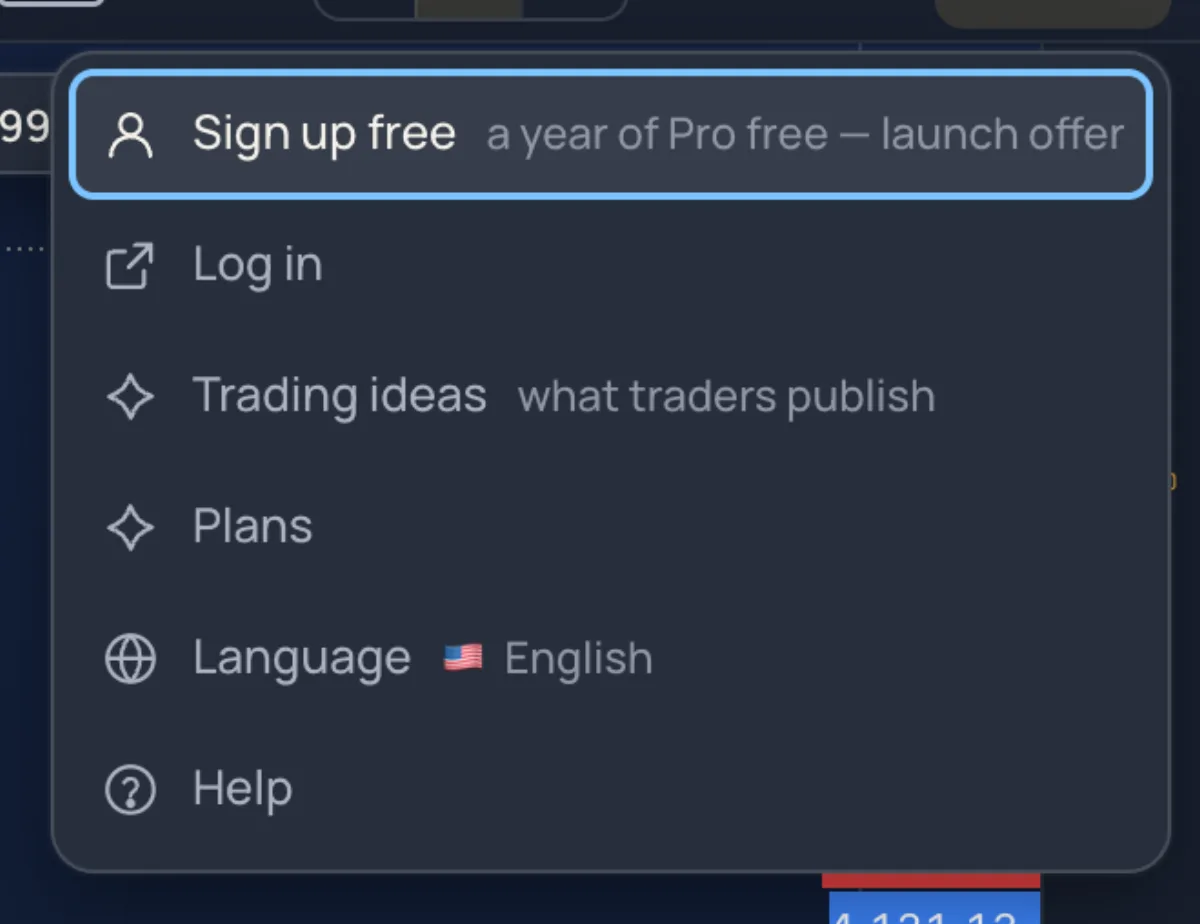
- On the chart, the gold Sign up button at the top right opens the account menu: Sign up free, Log in, Trading ideas, Plans, Language and Help. Under Sign up free a hint tells you the current offer — a year of Pro while the launch seats last, otherwise a free month of Pro.
- The pages themselves are millionchart.com/signup and millionchart.com/signin. An invitation from a friend is a link of the form millionchart.com/join?ref=CODE.
How to sign up with Google#
- Click Sign up, then Sign up free.
- Click Continue with Google and choose your Google account. Google confirms your e-mail address, so no code is needed.
- On the Almost there card, check the username offered (made from your e-mail address; type another if you like), tick the box for the Terms of Service and Privacy Policy, and click Next. The second box, for e-mails about trainings and offers, is optional.
- The welcome card shows your member ID, your account type and your e-mail. Click Go to dashboard and the chart opens, signed in.
How to sign up with e-mail#
- On the sign-up page click Email, under or. Your Country is detected; change it if it is wrong.
- Type your e-mail address and click Send code. A six-digit code is mailed to you — look in the spam folder too.
- Type it in Verification code; it is checked as the sixth digit goes in and the field shows Email verified. Resend code opens after a short countdown; Change email starts over.
- Click Next step.
- Choose a Password and repeat it in Confirm password. The four rules — 8+ characters, Uppercase letter, Lowercase letter, Number — tick off as you type. Click Create my account.
- The Almost there card asks for your username and your agreement, as in the Google flow. Click Next.
- The welcome card appears. Click Go to dashboard.
With an invitation#
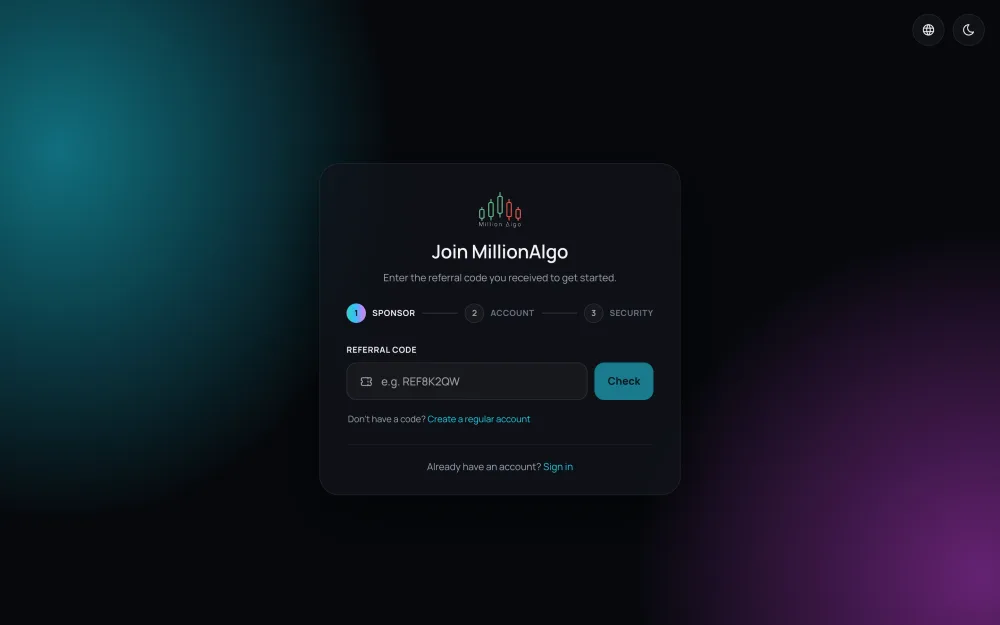
A link with ?ref= opens a Sponsor step first: the Referral information panel shows your sponsor's Sponsor ID (and, for a network code, the Placement side). Click Next step, or Not your sponsor? Use a different code to type another into Referral code and press Check. The sponsor is linked to your account permanently; without a code, click Create a regular account.
Signing in#
- Open millionchart.com/signin — or click Sign up, then Log in, on the chart.
- Type your Email and Password and click Sign in, or click Continue with Google.
- If two-factor sign-in is on for your account, the Two-step verification card asks for the six-digit code from your authenticator app. Click Verify.
- You land on the chart, or on the page you came from.
On a device where you enrolled a passkey on the MillionAlgo portal, a Sign in with fingerprint or Face ID button appears above the form (see Your account pages). A member who never accepted the agreement, or has no username yet, meets the Almost there card once after signing in.
Forgotten password#
Click Forgot password? under the sign-in form, type your e-mail address and send the form. Open the link in the mail you receive — it opens the reset page of the site you asked from — and type a new password twice. The new password works on millionchart.com and on the MillionAlgo portal.
Language#
Open the account menu and click Language. The dialog lists 21 languages — English and English (India), German, French, Spanish, Italian, Polish, Turkish, Russian, Portuguese, Indonesian, Malay, Thai, Vietnamese, Japanese, Korean, Chinese (simplified and traditional), Arabic, Hebrew and Persian — each written in its own name with a flag. Click one and the whole page switches at once, without a reload. A Beta tag means the translation was made by machine and not yet reviewed by a native speaker. Your choice is remembered in this browser and, when you are signed in, on your account. On a phone the Language row is in the More sheet.
The sign-up and sign-in pages have their own globe button at the top right; those pages offer five languages (English, Arabic, Spanish, Korean, Chinese).
Without an account, and with one#
| Without an account | With a free account | |
|---|---|---|
| Live chart, 21 chart types, 80+ indicators, Lightning Strike, bar replay | Yes | Yes |
| Charts on one screen | 2 | 4 |
| Price alerts | Ring only while the page is open, one level each | 3 active alerts, delivered to your phone, Telegram and e-mail; alerts on lines and indicators |
| Paper trading | No | Yes |
| Snapshot links and published ideas | No | Yes |
| The free Pro month | No | Yes, once, when you choose |
The free account is free for good. What Pro adds is on Plans.