Zig Zag
What the Zig Zag legs and swing labels show, how a reversal is confirmed by ATR or percent, the settings on MillionChart and an example on gold.
Zig Zag joins the significant swing highs and lows of the chart with straight lines and ignores every move smaller than a threshold. What is left is the skeleton of the price: the legs of the trend, their size and their turning points, without the noise between them. The idea is Arthur Merrill's filtered waves; MillionChart sizes the filter with the ATR by default so that it fits any symbol and timeframe.
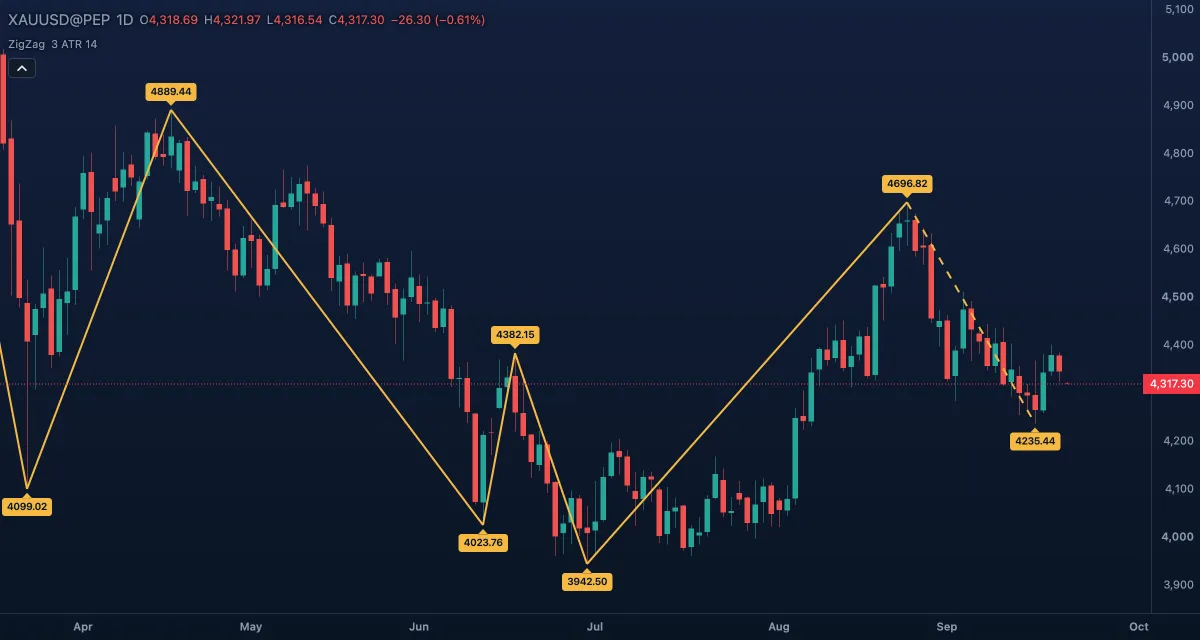
What it shows#
- Zig Zag — a solid gold line from each confirmed swing to the next, alternating high and low.
- The last leg is dashed: it runs from the last confirmed swing to the running extreme, which becomes a swing only once a reversal has confirmed it. The dashed leg can still lengthen, but a solid leg never changes.
- Swing high and Swing low labels on the turning points, with the price by default, or the leg's change in percent, or both.
How it is calculated#
While an up leg runs, its end is the highest high since the last swing low. A bar whose low lies at least the threshold below that high confirms the high as a swing and starts a down leg; down legs mirror this. In ATR multiple mode the threshold is the multiple times the ATR of the ATR length on the bar that made the extreme; in Percent mode it is that percent of the extreme's price. With Price set to Close the legs follow closes instead of highs and lows. Only closed bars confirm reversals; the forming bar can only extend the running extreme.
How traders use it#
- Trend and structure at a glance: legs up that are longer than the legs down are an uptrend; the sequence of swing highs and lows is the same structure Pivot Highs and Lows marks, drawn as waves.
- Measuring: with Labels set to Change, each leg shows its size in percent, which makes it easy to compare pullbacks with the moves before them and to spot a leg that is unusually short or long.
- Patterns: Elliott wave counts, harmonic patterns and head-and-shoulders are read from Zig Zag points; the Fibonacci tools then measure the retracement of a leg; see Fibonacci.
- Choosing the filter: 3 × ATR(14) draws a readable picture on most charts; a smaller multiple shows more, smaller waves. In Percent mode one number fits only one kind of chart (about 1 % suits gold on 5- to 15-minute charts, far less for a slow forex pair, far more for crypto on daily bars).
- Watch out for the last leg. The dashed leg is not confirmed, so the latest swing can move or disappear before the reversal is complete; never trade a Zig Zag turn as if it were already known. The solid legs are fixed, which is what makes the indicator honest for reading back.
Settings#
| Setting | Default | What it changes |
|---|---|---|
| Reversal | ATR multiple | How the threshold is sized: ATR multiple or Percent. |
| ATR multiple | 3 | The reversal size in ATRs (ATR multiple mode). 0.1 to 100. |
| ATR length | 14 | The bars the ATR averages (ATR multiple mode). |
| Percent | 1 | The reversal size in percent of the extreme (Percent mode). 0.01 to 100. |
| Price | High / low | High / low or Close: which prices the legs connect. |
| Labels | Price | None, Price, Change (the leg's change in percent) or Price and change. |
| Colours and style | — | The Zig Zag line and the Swing high labels / Swing low labels colours, under Lines in the Inspector. |
Example on gold#
For example, on the daily chart Zig Zag shows an up leg from $4,180 to $4,322, then a confirmed down leg to $4,256 labelled −1.53% in Change mode, and a dashed leg rising from there to $4,300. The pullback gave back about half of the previous leg and reversed, which many traders read as a healthy correction in an uptrend; the plan is to buy near the last swing low's area if price dips, with a stop under $4,256, and to expect the next swing high above $4,322. The dashed leg turning into a confirmed swing high below $4,322 (a lower high) would weaken the case; a close under $4,256 would end it.
Add it to your chart#
- Click Indicators in the top strip (on the Pro screen, press I).
- Type
zigzagand click the indicator. - Click its chip in the legend to open the Inspector and change the settings; drag the chip to reorder; the dot hides it; × removes it.
Related#
- Pivot Highs and Lows — the swings as labels, chosen by bar count instead of by size
- Williams Fractals — the five-bar turning points
- ATR — the volatility measure the default filter is built on
- Alerts — an alert when the price crosses a swing's level
- Adding and tuning indicators