Drawing on the chart
How drawing works on MillionChart — picking a tool from the rail, placing its points, selecting and editing a drawing, the settings card, favourites, the Auto helpers, keys — before the pages of each tool group.
A drawing is anything you put on the chart by hand: a line, a level, a Fibonacci grid, a position, a shape, a note, a pattern. Every drawing is anchored to time and price, so it stays where you put it when you scroll, zoom or change the timeframe, and it is saved with your layout. This page explains what every tool has in common; the pages that follow explain each tool.
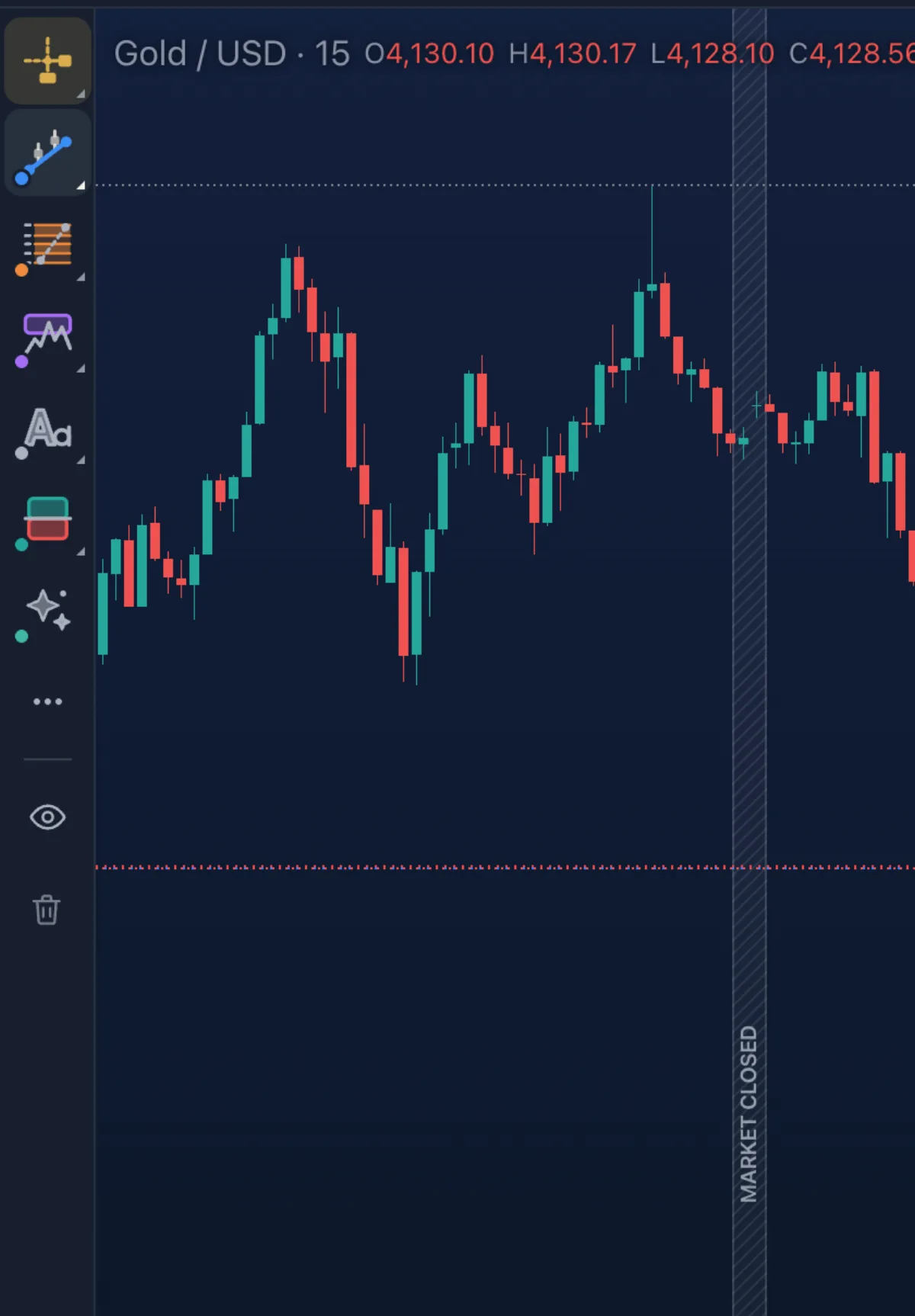
The rail#
The tools live on the rail at the left, in groups. Move the pointer over a group's tile and its list opens; click a tool to arm it. A group's tile shows the tool you used last in it, so the next time one click arms it again. The groups:
| Group | Tools | Page |
|---|---|---|
| Lines | Trend line, horizontal line, horizontal ray, vertical line, ray, extended line, parallel channel, pitchfork | Lines |
| Fibonacci | Retracement, extension | Fibonacci |
| Trade & measure | Long position, short position, price range, date range, date and price range | Trade and measure |
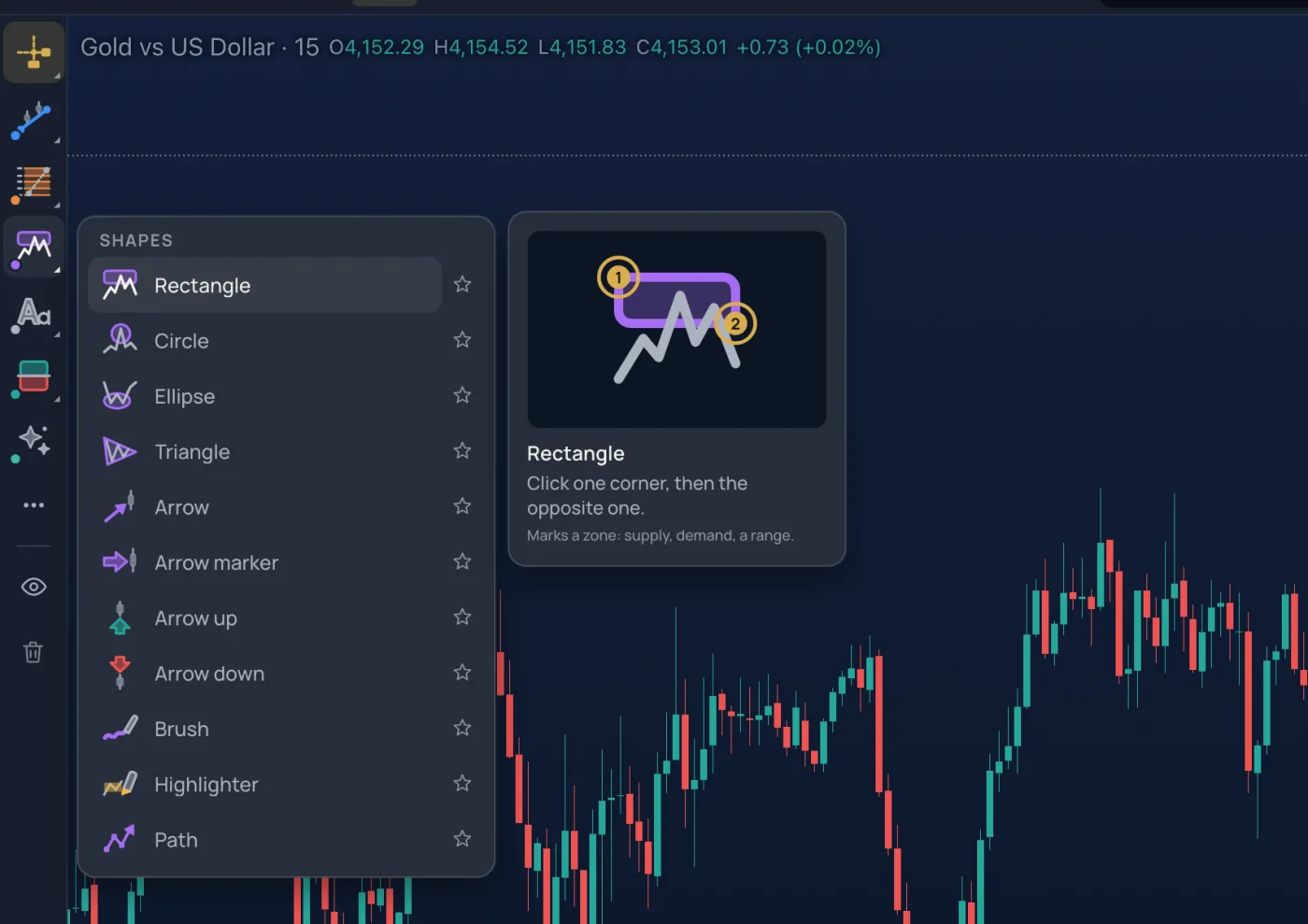
| Shapes | Rectangle, circle, ellipse, triangle, arrow, arrow marker, arrow up, arrow down, brush, highlighter, path | Shapes |
| Text & notes | Text, note, callout, price label, price note | Text and notes |
| Patterns | Head and shoulders, ABCD, XABCD, Elliott impulse, Elliott correction | Patterns |
| Emoji | A sticker from a fixed set, with a Recent row | Emoji |
| Anchors | Anchored VWAP, fixed range volume profile — the last rows of the Trade & measure list on the Pro screen, or from the search box | Anchors |
On the Guided screen the rail shows Lines, Fibonacci, Shapes, Text & notes and Trade & measure as tiles; the Patterns, Emoji, measure, zoom to an area, the magnet and lock-all are under the More tools tile. The Pro screen adds the Patterns tile. On a phone the whole set is in the Draw sheet at the bottom.
Placing a drawing#
- Arm a tool. The status line says what to do next, for example "Click a low, then a higher low".
- Click on the chart once for each point the tool needs — a horizontal line takes one click, a trend line two, a channel three, a head-and-shoulders seven. Between clicks the next point follows the pointer so you see the drawing form.
- The brush and the highlighter are different: press, drag, release. The path tool takes a click per point and a double-click to finish.
- Esc cancels a drawing you have not finished and puts the cursor back.
Hold Shift while placing a point of a line to snap it to a horizontal, vertical or 45° angle. The magnet (under More tools) snaps a point to the nearest candle's open, high, low or close — weak or strong.
By default the tool goes back to the cursor after one drawing. Keep drawing (the pin next to the armed tool, or K on the Pro screen) keeps the tool armed for several drawings in a row.
Selecting and editing#
- Click a drawing to select it: its handles appear, one per point, and a thin frame shows the whole.
- Drag a handle to move that point; drag the body to move the whole drawing. A channel keeps its width, a position keeps its side.
- Double-click a drawing (or press Enter while it is selected) to open its settings card.
- Delete removes the selected drawing. On the Guided screen the chart asks first; on the Pro screen it deletes at once and offers Undo.
- Ctrl+Z / Ctrl+Shift+Z undo and redo drawing changes (the chart's undo is for drawings; an indicator's settings card has its own Undo).
- Copy and paste a selected drawing with Ctrl+C and Ctrl+V; it lands a little to the right of the original.
- The small bar that appears beside a selected drawing (the Halo) holds its colour, lock, visibility and settings without opening the card; it is hidden on phones, where the same actions live in the bar at the bottom.
The settings card#
Every drawing has a settings card with the same shape: the colour, the width and dash of its lines, what it extends to, what labels it shows (prices at the ends, the price change and bar count, the angle), a fill and its opacity where the tool has one, the text and font size for text tools, and the Fibonacci levels for the fib tools. The card also has a Note — a sentence of your own that shows when you hover the drawing — and a lock, so the drawing cannot be moved by accident. Changes apply as you make them; Reset restores the tool's defaults. A right-click on a drawing opens the same choices as a menu.
Smart lines#
The line tools read the chart for you. A trend line, ray, extended line, horizontal line or ray, a channel and a pitchfork carry a small label with how many times the price touched the line, and the Lines group has Auto helpers that draw for you: the up and down trend lines the price respects right now, the key levels the market turned at again and again, yesterday's high and low with this week's open, the trading sessions (Asia, London, New York) boxed around the price they traded, and a fib on the swing on screen. The helpers are page objects, not drawings: they update as the candles arrive and they switch off from the same tile.
Favourites#
Hover a tool in any list and a star appears; starred tools gather on a floating favourites bar over the chart. Drag its grip to move the bar anywhere; double-click the grip to put it back. With no stars there is no bar. On a phone the favourites come first in the Draw sheet.
Hiding, locking, removing#
- The eye on the rail hides drawings, indicators or positions, one kind at a time, so you can look at bare candles and bring everything back with one click. Hidden drawings stay saved.
- Lock all (under More tools) locks every drawing on the chart; the lock on a single drawing's card locks just that one.
- The bin removes every drawing on the chart — the Guided screen asks first, the Pro screen offers Undo. Price alerts are not drawings and are not removed.
Drawings and alerts#
A trend line, a ray, an extended line, a horizontal line or ray and a channel can ring an alert when the price crosses them: right-click the line and choose the alert, or pick the line in the alert dialog. The alert follows the line if you move it. See Alerts.
Keys#
On the Pro screen every common tool has a letter: T trend line, H horizontal line, and so on — press ? for the sheet. The Keys of other chart sites preset (More › Keyboard) gives you Alt+T, Alt+H, Alt+V, Alt+F instead. See Keys.
Where drawings are kept#
Drawings belong to the symbol: your lines on gold are there when you come back to gold on any timeframe, and not on EURUSD. With an account they are saved in the layout and follow you to every device; without one they live in this browser only. The chart grid can share drawings between its charts of the same symbol.