Trade & measure
Long and short positions that size a trade before you take it, and the three ranges that measure a move in price, time and volume.
The Trade & measure group holds two kinds of tool: the long and short position, which draw a trade on the chart and show its risk, reward and size before you take it, and three ranges that measure a move. Hover the Trade & measure tile on the rail (the left tool bar) to open the list; the tile arms the tool you used last. On a phone tap Draw, then Trade & measure. The star next to a tool puts it on the favourites bar over the chart (the first five starred tools also sit at the top of the rail; ten at most). For a quick one-off reading there is also the Measure pointer (the More tools tile; M on the Pro screen): click where a move starts and where it ends, read the price, percent, candles and time, and the next click clears it; it is never a drawing. Every drawing here also has a Note field in the Inspector; the note shows when you point at it.
Long position#
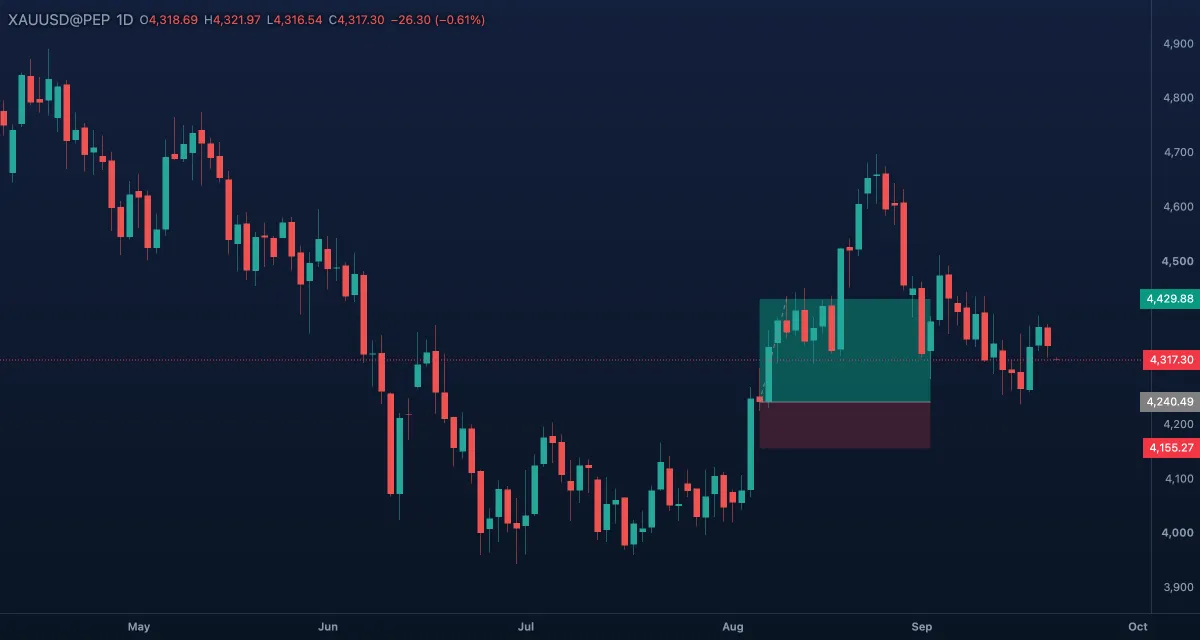
What it draws. A box from your entry to the right: a green profit zone up to the target, a red loss zone down to the stop, a thin grey entry line, and the three prices on the price column. While it is selected or under the pointer, three chips read it: Target: 25.38 (0.589%) 2,538, Amount: 10100 (the distance in price, percent and ticks, and the account after the target), the same for the stop, and Open PnL: −53.44, Qty: 3.94 with the Risk/reward ratio. Once the price trades through the entry, the zone it reached shows stronger, and the chip reads Closed PnL when a later candle hits the stop or the target.
What it is for. Your risk, your reward and the size to trade, before you buy. Risk is a share of the account, so the size follows from the distance to the stop: a wider stop means fewer lots. The usual mistake is moving the stop to make the ratio look good; put it where the idea is wrong.
How to draw it. Click at your entry, then drag the green and red edges to your target and stop. A fresh setup puts both the same distance away (risk to reward 1). The stop and target are whole edges you can grab anywhere, selected or not; the right edge sets how far the box runs; the ring at the entry, or the body, moves it all. No Shift; Esc cancels. A double-click opens the Inspector. On the Pro screen L arms it.
Settings. The Inspector reads as a trade.
| Section | What it holds |
|---|---|
| Trade | Entry, Stop, Target in one-tick steps; Risk : reward, Size, At the stop, At the target |
| Risk | Account size (the practice balance; 10,000 without one), Risk per trade as % of account (1) or Money; under More: Value of a 1.0 move, per lot and Lot decimals (2) |
| Colours, Labels | The lines and zones; text colour, Text size 12, Show the labels when it is not selected |
| Presets | Classic, Mono, Save this look |
Right-click it for Trade this setup, which fills the paper-trading ticket and sends nothing (you must be signed in), and Flip, which makes it a short with the same levels.
Example. Gold pulled back to a rising trend line. Click where you would buy, drag the red edge below the last swing low and the green edge to the previous high. The chips give the ratio and the size for 1 % of the account; Trade this setup puts them in the ticket. See Trading.
Short position#
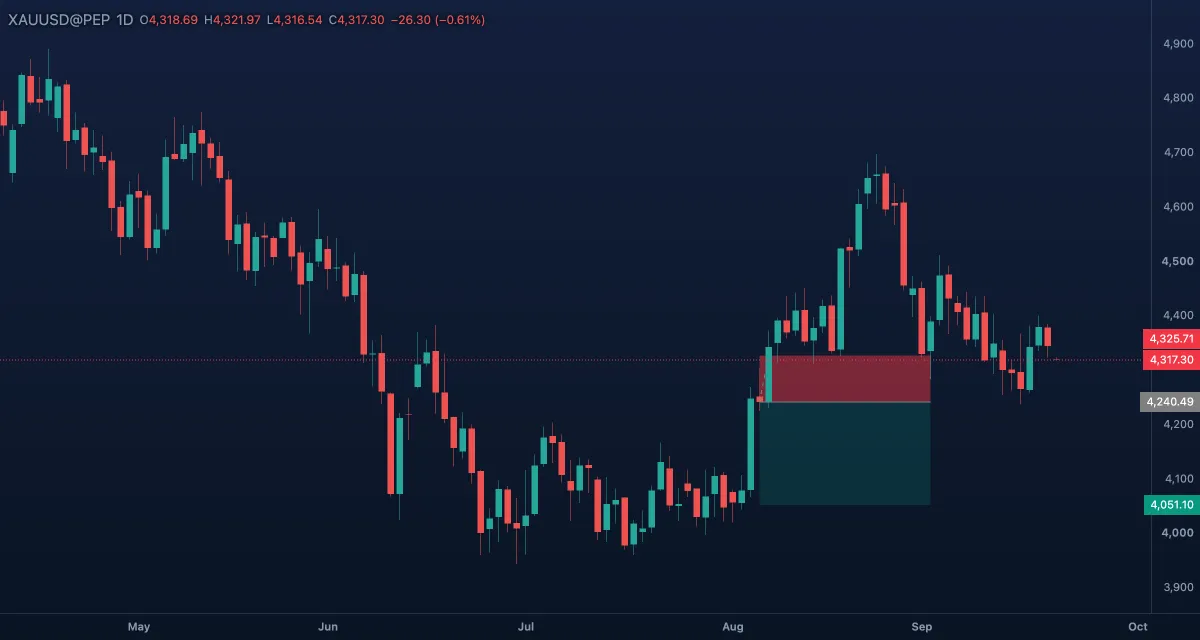
What it draws. The long position mirrored: the loss zone above the entry up to the stop, the profit zone below it down to the target, the same chips, prices on the price column and trade path.
What it is for. The same question for a sale: how much you risk if the price rises to the stop, what you make if it falls to the target, and the size that keeps the loss at your chosen share of the account.
How to draw it. Click at your entry, then drag the red and green edges to your stop and target. A fresh setup has both the same distance away. The edges, the right edge, the entry ring and the body move as on the long position. No Shift; Esc cancels. A double-click opens the Inspector. On the Pro screen Shift+L arms it.
Settings. Exactly the long position's. The Inspector keeps the stop above the entry and the target below it, at least one tick away. Right-click for Trade this setup and Flip (back to a long with the same levels).
Example. Gold failed at a lower high and closed back under a level. Click at the level as the entry, drag the red edge above the lower high and the green edge to the last swing low. The Risk/reward ratio chip says whether the trade is worth taking.
Price range#
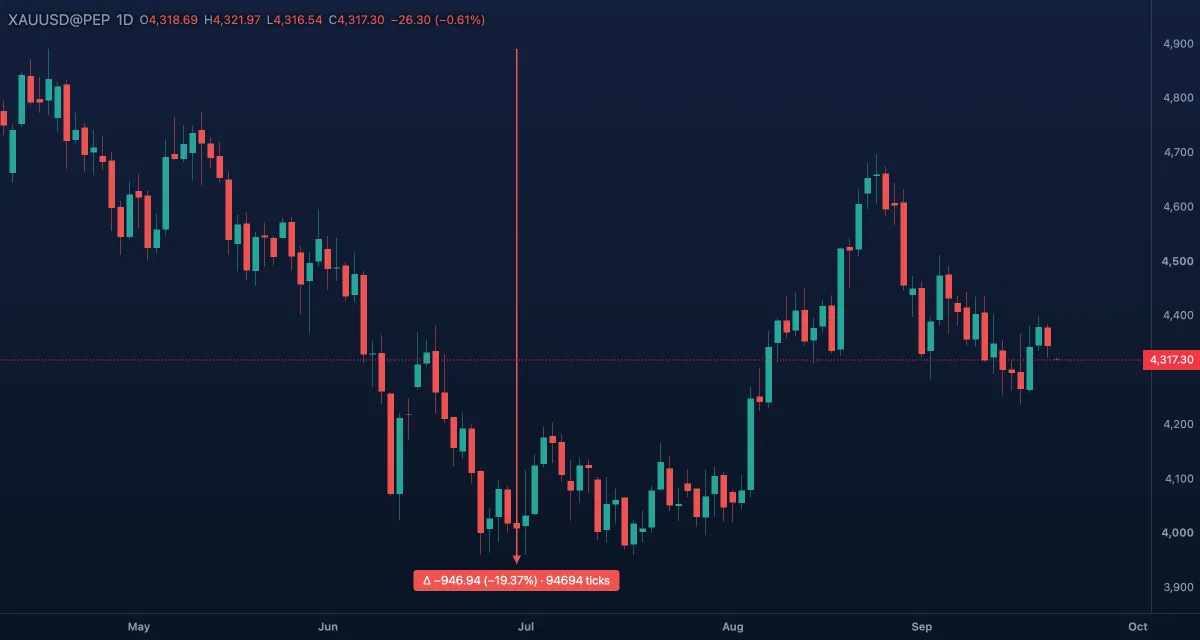
What it draws. A tinted box between two prices with a vertical arrow from the first to the second and a tag that reads the move: Δ +12.40 (+0.29%) · 1240 ticks. Teal for a move up, red for a move down.
What it is for. Measuring a move in price and in percent: the size of a rally, the depth of a pullback, the distance of a stop in ticks. Measure the last few swings and you know what a normal move looks like on this timeframe; a target twice that size is probably too far.
How to draw it. Click one price, then another. Shift while placing the second point measures price alone (the point stays on the first point's candle); Esc cancels. A double-click opens the Inspector; drag a handle to move a point, drag the body to move all. A click inside the box selects it.
Settings. Up colour (teal), Down colour (red), Opacity (18 %), and Ticks (on): the move in ticks on the tag.
Example. On gold, click the low and the high of last week's rally: the tag gives its size and percent. Measure this week's pullback the same way and you see at once whether it has given back more than half.
Date range#
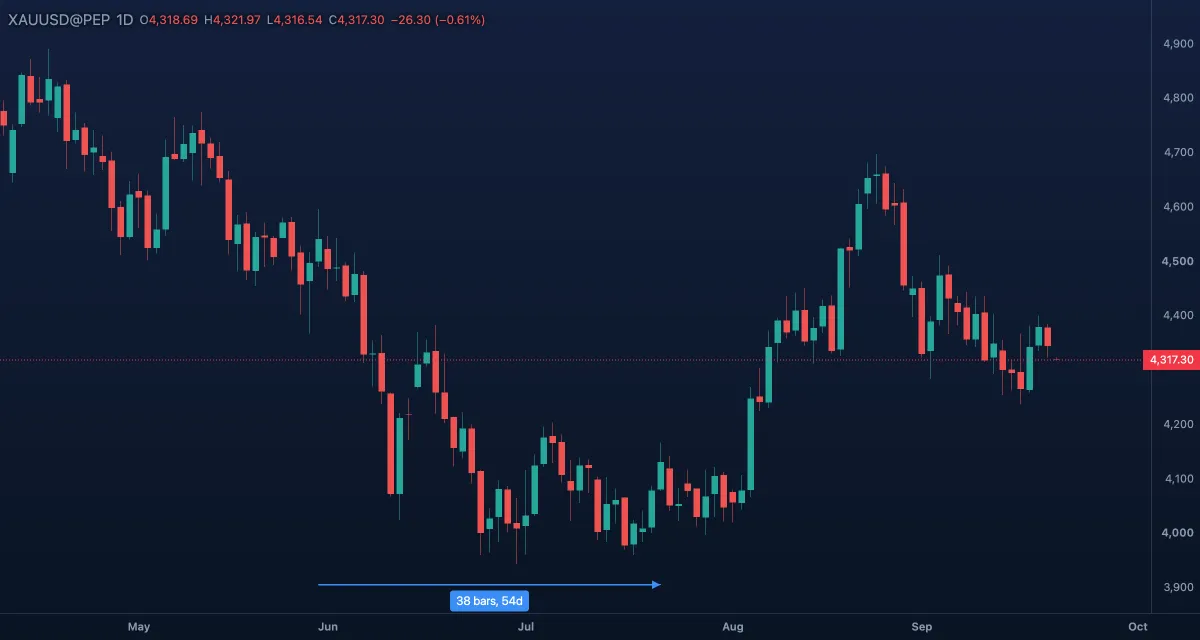
What it draws. A tinted blue box between two moments with a horizontal arrow and a tag that reads 38 bars, 3h 10m: the candles between the points and the time between them. Candles are counted on the chart, so a weekend gap counts no candles while the time span still shows calendar time.
What it is for. Measuring how many candles, and how long, a move took: how long a consolidation has lasted, how fast a rally was, how much time a pattern took to form. Time is the half of a chart most people forget.
How to draw it. Click one moment, then another. Shift while placing the second point measures time alone (the point stays at the first point's price); Esc cancels. A double-click opens the Inspector; drag a handle to move a point, drag the body to move all. A click inside the box selects it.
Settings. Colour (blue) and Opacity (18 %).
Example. A range on gold has held for a while: click its first candle and the latest one. The tag counts the days inside it; compare with earlier ranges on the same chart to see whether this one is old by its standards.
Date & price range#
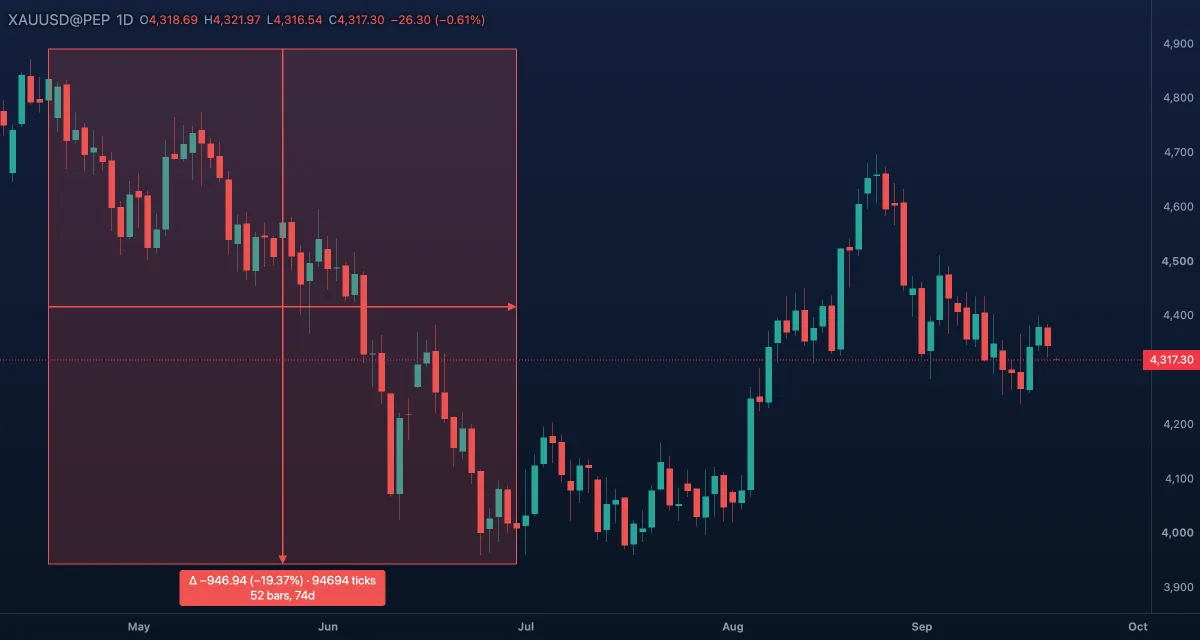
What it draws. One box between two corners with both arrows and a two-row tag: the price row of the price range (Δ, percent, ticks) and the time row of the date range, which can also carry the volume of the candles between the points: 38 bars, 3h 10m · Vol 291.36 K. Teal for a move up, red for a move down.
What it is for. Measuring price and time together: how far and how fast a move went, and how much volume carried it. A move that covers a lot of price in few candles on big volume is a different thing from the same move spread over weeks.
How to draw it. Click one corner, then the opposite one. No Shift; Esc cancels. A double-click opens the Inspector; drag a handle to move a corner, drag the body to move all. A click inside the box selects it.
Settings. Up and Down colours, Opacity (18 %), Ticks (on) and Volume (off): the volume of the candles between the points on the tag.
Example. On gold, box the last leg up from its low to its high. The tag reads the leg's size, the candles it took and, with Volume on, the volume behind it. Box the leg before it the same way to see which one the market pushed harder.
Related#
- Drawing on the chart — selecting, handles, the magnet, lock, hide and undo
- Trading — the paper-trading ticket that Trade this setup fills
- Fibonacci — levels to put a target on
- Lines — the levels and trend lines a stop goes behind
- Keyboard — the one-key tools of the Pro screen