Layouts and the chart grid
Save the chart as a layout, reopen or restore an earlier version, and put up to 24 charts on one screen that move together by colour group.
A layout is the chart as you left it: the symbol, the timeframe, the chart type, the indicators with their settings, the drawings and the view. The chart grid puts several charts on one screen and lets them share a crosshair, a symbol and a timeframe.

Layouts#
What a layout stores#
The symbol and timeframe, the chart type, the time zone, the price scale mode, every indicator with its inputs, look and visibility, the height of each pane, the drawings, and how far the chart is zoomed and scrolled. Drawings belong to the symbol: a line you draw on XAUUSD shows on every XAUUSD chart.
Where it is#
- The save button in the strip. It reads Save until the first save, then the layout's name. Ctrl+S (⌘+S on a Mac) does the same.
- The chevron next to it opens the Layouts menu: open, save a copy, rename.
- In the Lens (Ctrl+K), type
#to list your layouts and open one.
How to use it#
- Set the chart up: symbol, timeframe, indicators, drawings.
- Press Ctrl+S. The first save names the layout My chart.
- Open the Layouts menu. Rename… gives it a name of up to 120 characters; Save a copy… keeps a second version under another name.
- Your layouts lists every saved layout with its symbol, its timeframe and when it was saved. Click one to open it; the one on screen is marked open.
- New chart starts a fresh chart; the one you were on is kept. The bin on a row asks Delete “name”? first.
Autosave and versions#
With Autosave is on (the switch at the foot of the menu), changes are saved a few seconds after you make them; the line under the layout's name reads Saved · 14:02 or Unsaved changes — autosave runs in a few seconds. With Autosave is off, changes wait for Save, and you are asked before you leave the page.
With an account, the clock icon on a layout row opens Versions of “name”: one line per version — Saved, Autosaved, Before it became a grid, Before charts were removed, Before a restore, Before it was deleted — with its day and its number of charts. Click one and press Restore; what you have now is kept as a version too. Two windows on the same layout do not fight: the second shows Saving in your other tab · Use here, and if another window saved first you choose Reload or Keep mine.
The chart grid#
What it is#
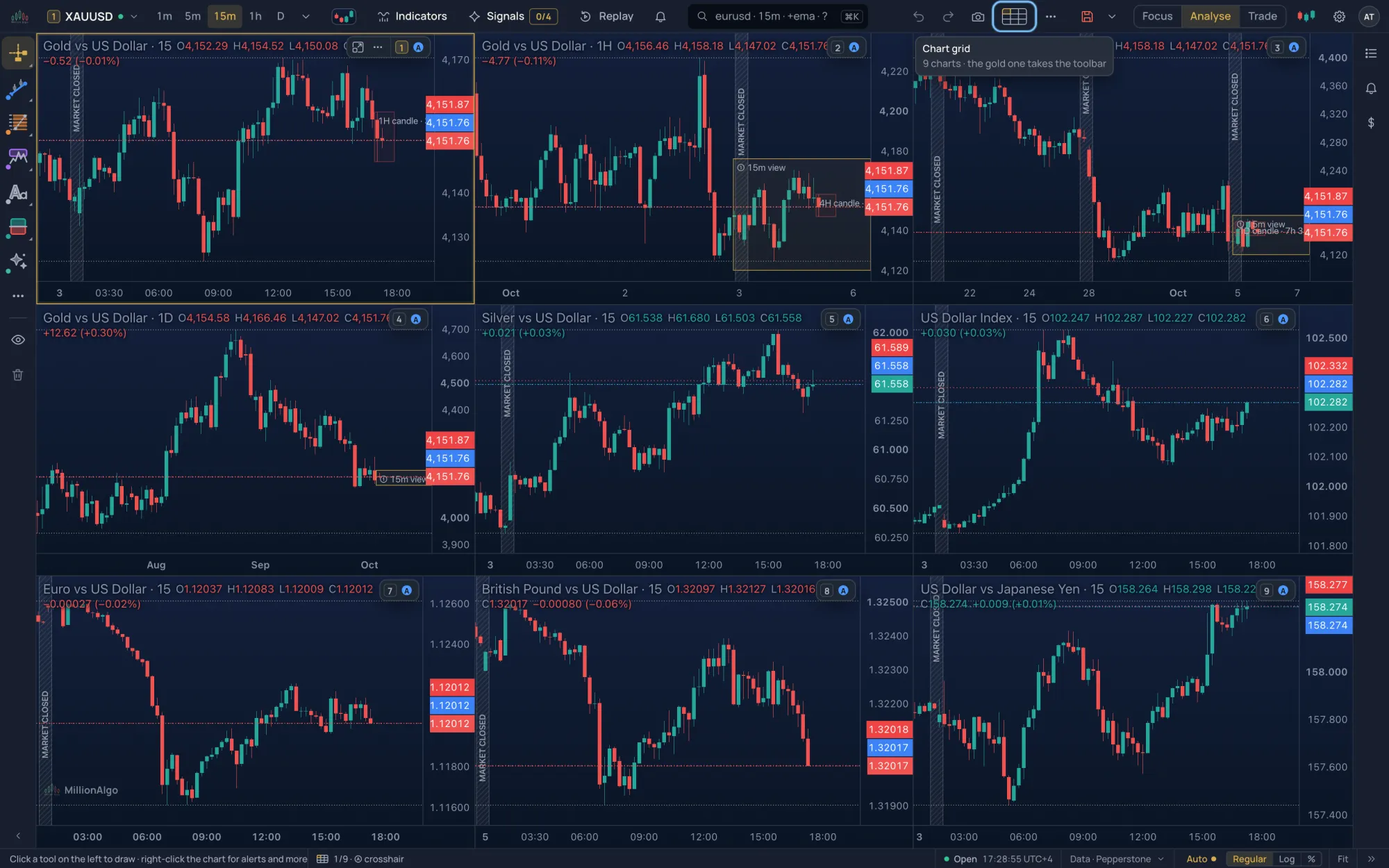
Up to 24 live charts on one screen. The one with the gold frame takes the toolbar: the strip, the rail, the legend and the side lists act on it. Click a chart to give it the toolbar. Charts in the same colour group (Ⓐ to Ⓓ) move together.
Where it is#
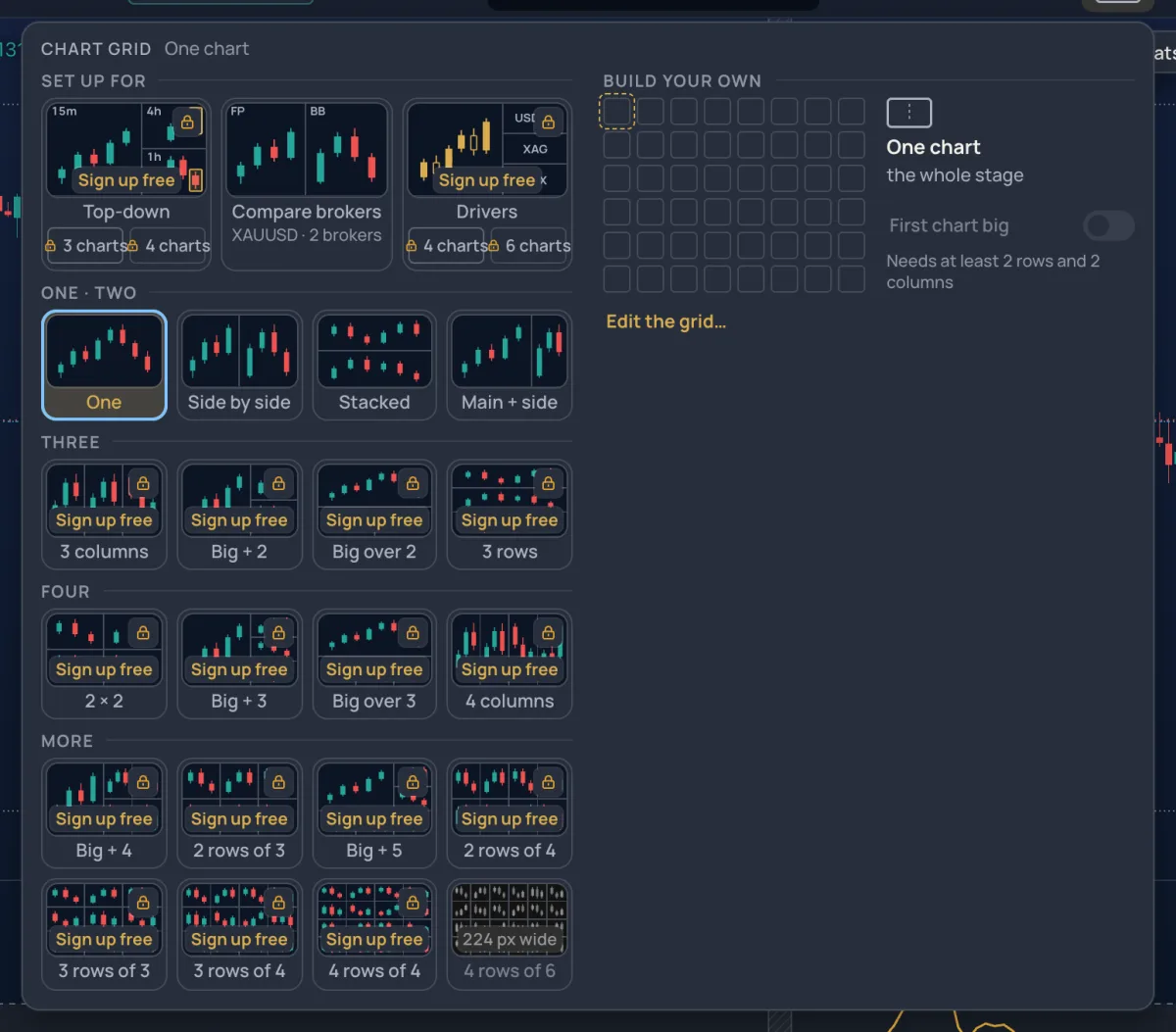
The grid button in the strip, next to the layout buttons; it shows the shape in use (One chart to begin with). On a phone it is the Charts action at the bottom. On the Pro screen G then G opens the builder, and in the Lens you can type >charts 6 or >grid 3x4.
How to use it#
- Click the grid button. Under Set up for pick a ready set-up, or pick a shape: Side by side, Stacked, Main + side, 3 columns, Big + 2, Big over 2, 3 rows, 2 × 2, Big + 3, Big over 3, 4 columns, and under More 6 to 16 charts in even rows.
- Or open Build your own: set Rows and Columns (up to 8 columns and 6 rows, 24 charts at most) and tick First chart big for one chart twice the size.
- A new chart takes the gold chart's symbol one timeframe up. Change a chart's symbol from its symbol slot in the strip, or from the Lens with Open in the next chart or Open beside.
- Alt+Enter shows the gold chart large; again, or Esc, goes back to the grid. PgDn / PgUp move to the next and previous chart.
- Edit the grid… (in a chart's corner menu) lets you draw a line across a chart to split it; ⊖ merges two; Save as my shape… keeps the result under My shapes.
Set-ups and Move together#
| Set up for | What it builds |
|---|---|
| Top-down · 3, Top-down · 4 | One symbol on a ladder of timeframes, from bias to entry, the bigger frames outlining the smaller. |
| Compare brokers | The same symbol on each broker feed that carries it, on one crosshair. |
| Drivers · 4, Drivers · 6 | Gold or silver beside what drives it: the dollar index (inverted), silver, the S&P 500, USD/JPY, the VIX. |
Move together sets what each colour group shares:
| Switch | Choices | Effect |
|---|---|---|
| Crosshair | on / off | Point at a candle and the others mark the same moment. |
| Symbol | on / off | Pick a symbol once and every chart of the group changes. Keep its own symbol pins a chart out of it. |
| Timeframe | Off · Same · Ladder | Ladder keeps the steps apart. |
| Time | Off · Same moment · Same span · Context | The right edges meet; the same start and end; or bigger timeframes keep the gold chart's view in sight. |
| Frame | on / off | Bigger timeframes outline what the gold chart shows. |
A new group starts with Crosshair and Frame on. The link dot on a chart's corner tab joins it to a group or sets it On its own.
Good to know#
- Drag a divider to resize; double-click it to even the charts out. The corner menu also offers Split, Merge with the chart beside or below, and Show inside this candle (a smaller timeframe inside one candle; Esc goes back).
- A bar replay in a grid runs on the gold chart, shown large. An alert rings once, however many charts show its symbol. The camera takes a snapshot of the whole grid.
- Beyond what your device can run at once, the extra charts are previews showing the candles and the price; point at one or click it and it becomes a full chart.
- On a phone the Charts sheet lists the charts of this screen, One at a time or Two stacked (phone upright); ‹ › at the top right moves between them. Drawing your own shapes needs a computer.
Limits and plans#
| Charts in a grid | Shapes of your own | |
|---|---|---|
| Without an account | 2 | — |
| Free account | 4 | 2 |
| MillionChart Pro | 24 | more |
The MillionAlgo indicator plans sit in between; see Plans. A saved grid with more charts than your plan allows still opens: the extra charts show as locked previews. A phone holds up to 8 charts, a tablet 12.