Indicators panel and the Inspector
How to find, add, tune, hide, reorder and remove indicators on the chart, and what every part of the Inspector card does.
The Indicators popover is where you put an indicator on the chart; the Inspector is the card where you change its settings and its look. This page covers both, the chips in the legend, and the panes an indicator can live in.
What it is#
An indicator is a calculation drawn over the price (an EMA, Bollinger Bands) or in its own pane under it (RSI, MACD, Volume). The chart has about a hundred built-in ones in five groups — Trend, Momentum, Volatility, Volume, Price — each with its own page under Indicators, plus the four MillionAlgo studies (Signals).
Where it is#
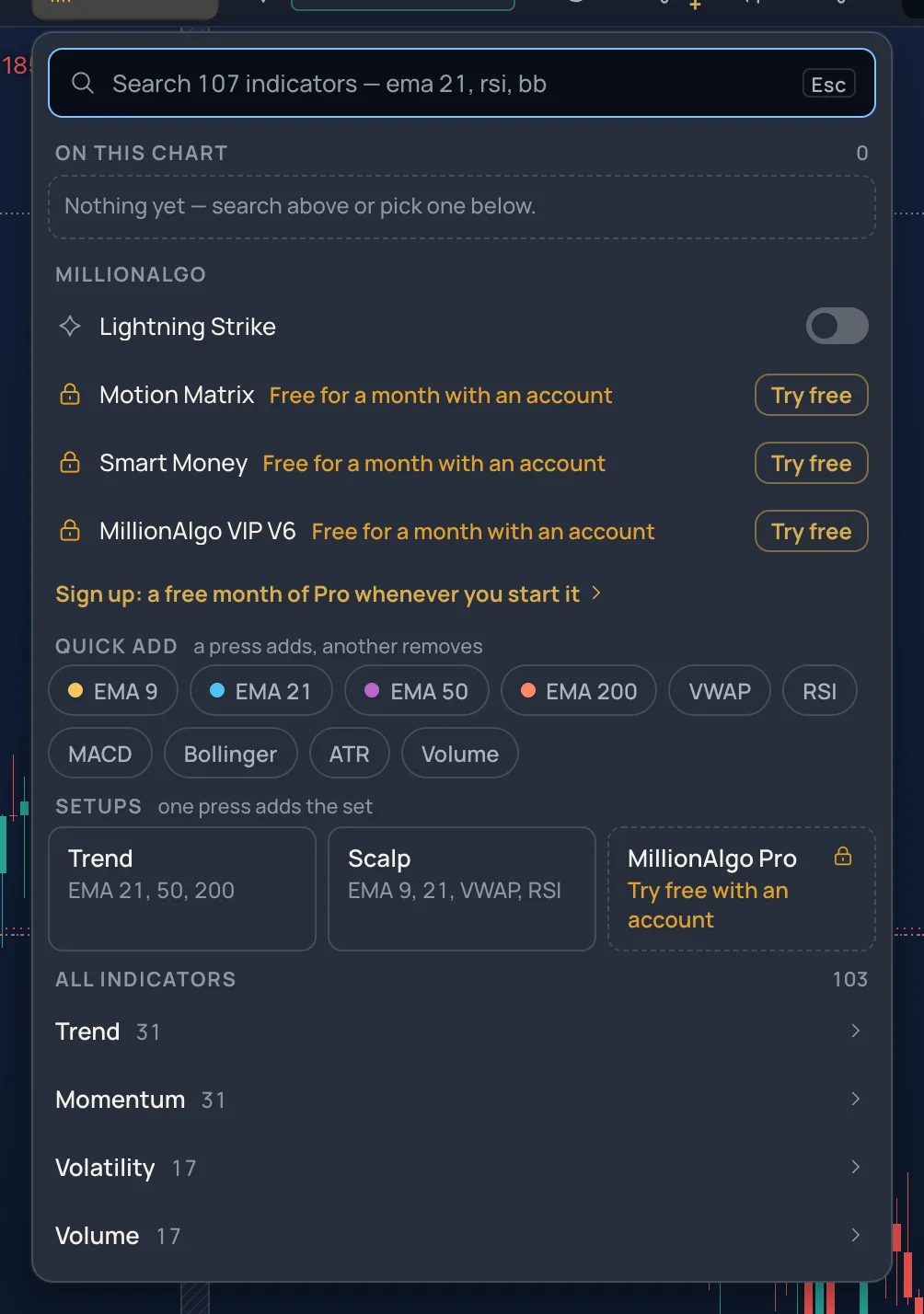
- Click Indicators in the strip. On the Pro screen I opens it; with the keys of other chart sites, / does.
- On a phone, tap Indicators in the action bar. Its badge counts the indicators on the chart.
- The Lens (Ctrl+K) adds one too: type
+ema 21and press Enter;−removes one.
How to use it#
- Type a name or a short name —
rsi,bb, orema 21with the inputs after it. Enter adds the first result; ↓ goes into the list. - Or open a group under All indicators and click a row. The row says on the price or new pane, so you know where it will draw.
- A row already on the chart asks first (press again to add another). After an add the row reads Added with an Undo for a few seconds; the popover stays open.
- The star on a row lists it under Favourites (kept in this browser).
- Quick add chips (EMA 9 to 200, VWAP, RSI, MACD, Bollinger, ATR, Volume) are switches: one press adds, another removes. Setups add a set at once — Trend (EMA 21, 50, 200), Scalp (EMA 9, 21, VWAP, RSI), MillionAlgo Pro (VIP V6, Smart Money).
Esc clears the search, then closes the popover.
On this chart and the legend chips#
On this chart lists every indicator with its colour dot. The row opens its settings; the icons at its right are Add another (a second copy), Hide or Show, and Remove (with Undo).
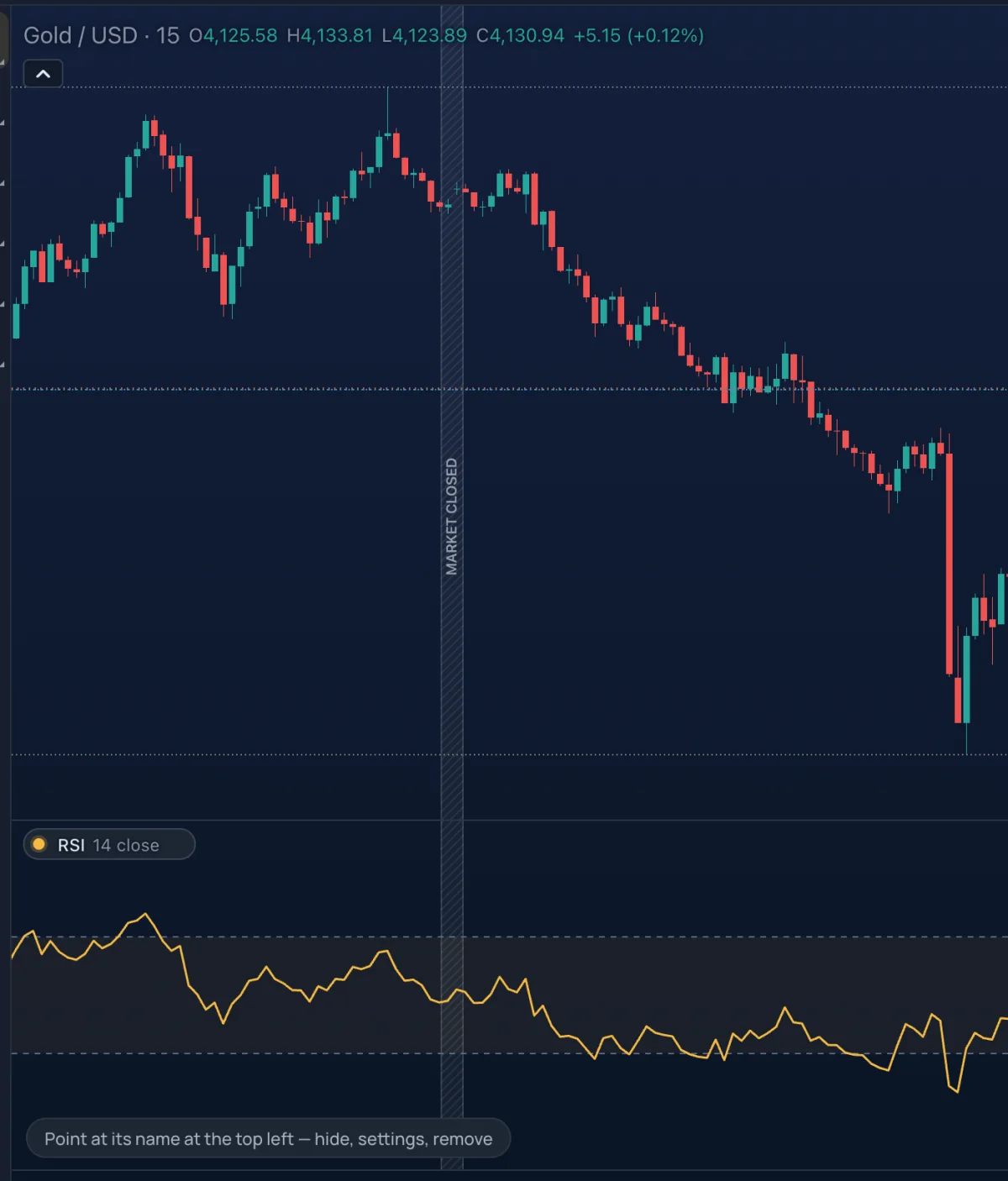
The same indicators sit as chips in the legend at the top left of the chart:
| On a chip | What it does |
|---|---|
| The dot | Hides or shows the indicator. It turns into an eye when you point at it; a hidden chip is dashed and says hidden. |
| The name | Opens the Inspector (Enter from the keyboard). |
| × (on hover) | Removes the indicator. |
| Drag | Reorders the chips within their pane. |
| Right-click | Settings, Add alert…, Hide, Duplicate and the Legend switches. |
A double-click on an indicator's line opens its Inspector too; a click on empty chart closes it.
The Inspector#
The Inspector is a card over the left side of the chart (a bottom sheet on a phone); drag it by its header, double-click the header to put it back. Every change shows on the chart as you make it.
Its header: the dot (hide or show), the name and inputs, a bell (Add alert, see Alerts), Duplicate, Remove from the chart, × (Esc).
The body lists the inputs under Calculation and Look, or under the indicator's own groups:
| Input | Control |
|---|---|
| A length, a number, a price | − value + ; a length also has the common lengths (9, 14, 21, 50, 100, 200) as chips. Drag the label sideways, or use the arrow keys. |
| A price source | Close, Open, High, Low, Mid, Typical, Average |
| A choice, a switch, a colour, a width | Chips (a long list stays a menu); a switch; swatches with + for any colour; the widths drawn as lines |
| A timeframe | Chart (the chart's own) or 1m … M |
| A symbol, a session | A search field; from – to and the days of the week |
| A time or a price | The value and Pick on chart (click the chart; Esc stops) |
Under them, Lines lists every line, level and fill the indicator draws. Open a row for its colour — a line on the price can be coloured by Price side: green above the price, red below, violet near it, with a Fade of Tight, Normal or Wide — its Drawn as type (Line, Steps, Area, Histogram, Columns, Circles, Crosses), Width, Line style, a level's price and Value on the price scale. Reset this line puts one row back.
The foot has Undo (Ctrl+Z inside the card), Reset and Save as my default: new copies of this indicator then start with these settings and lines, until Forget my default. Defaults are kept in this browser.
Panes#
With more than one pane, buttons appear at the top right of the pane under the pointer: Delete pane (its indicators go with it), Collapse pane and Maximise pane (press again to restore); the pane's right-click menu has the same. Panes cannot be moved up or down.
Examples#
- EMA 21 in one line. Click Indicators, type
ema 21, press Enter. Click its chip and choose Price side under Lines: green while the price is above the line, red below. - RSI the way you like it. Add
rsi, click its chip, pick 9 from the length chips, open Overbought under Lines and type another Level, then press Save as my default.
Limits and plans#
- There is no limit on the number of built-in indicators on a chart.
- The four MillionAlgo studies follow your plan — see Signals and Plans.
- Alerts on an indicator need an account: 3 alerts on the free plan, 100 with MillionChart Pro.
- Indicators and their settings are saved with the layout — see Layouts and the chart grid.