Look, chart settings, screen and keyboard
The Look picker (candle sets, backgrounds, theme, colour-blind colours), every section of Chart settings, the scale controls, and the Screen and Keyboard choices in More.
Look is the quick picker for how the chart is painted; Chart settings holds every option behind it, section by section. The More menu adds the two choices that change how the whole page behaves: the screen (Guided or Pro) and the keyboard preset.
What it is#
The chart keeps two separate sets: the Candles set colours only the candles, and the Background set colours the chart pane and the whole page around it. On top of that sit the portal theme (Gold, Neon, Light) and a colour-blind scheme. Everything here is free for everyone and applies the moment you pick it.
Where it is#
- The ◐ button in the strip (Look — candles and background; G then O on the Pro screen) and the gear next to it (Chart settings; G then P). When the strip is narrow both move into More.
- All chart settings at the foot of the Look picker opens the settings panel too, as does Settings in the legend's right-click menu.
- On a phone, the More sheet has a Settings tile; the Look picker opens as a sheet.
The Look picker#
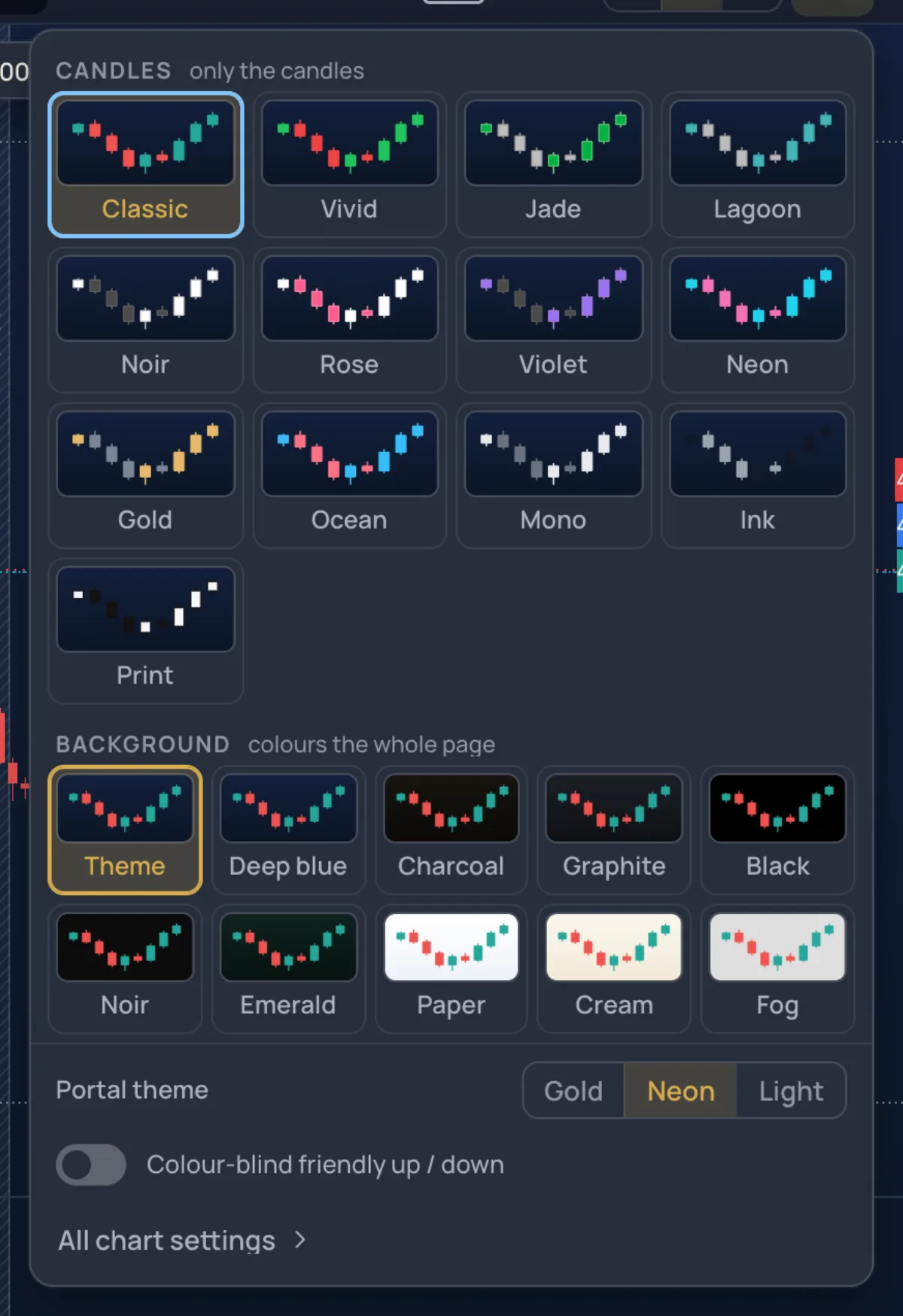
| Part | Choices |
|---|---|
| Candles — only the candles | Classic, Vivid, Jade, Lagoon, Noir, Rose, Violet, Neon, Gold, Ocean, Mono, Ink, Print. Each tile is drawn on the background in use. |
| Background — colours the whole page | Theme, Deep blue, Charcoal, Graphite, Black, Noir, Emerald, Paper, Cream, Fog. Theme is the portal theme's own background. |
| Portal theme | Gold, Neon, Light — the one choice that reaches beyond this page. |
| Colour-blind friendly up / down | Blue and orange instead of green and red for the frame's up and down colours. The candles keep the set you chose; pick Noir, Mono or Print for candles that do not rely on green and red. |
Inside the picker the arrows move, a letter jumps to a name, Enter picks and Esc closes.
Chart settings#
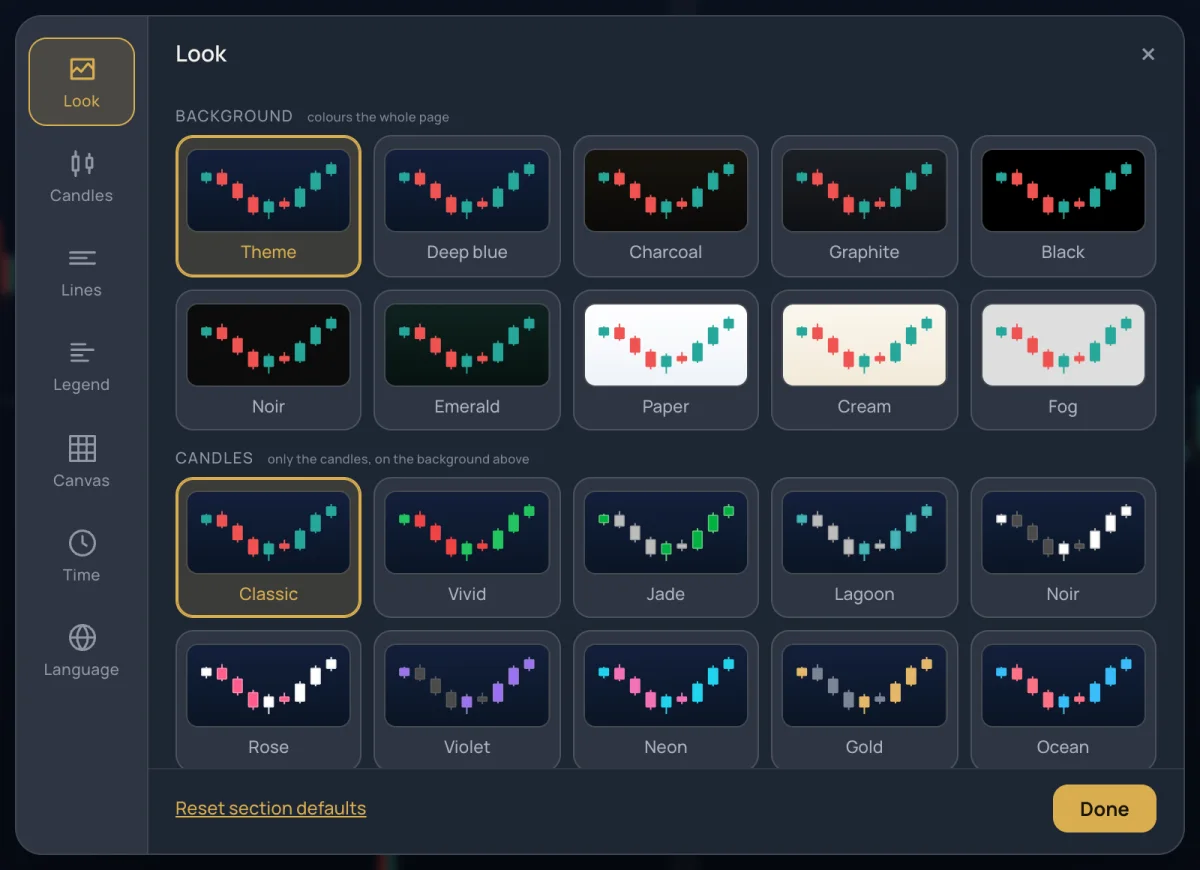
| Section | What it holds |
|---|---|
| Look | The same Background and Candles tiles as the picker. |
| Candles | Chart type — the same grid as the strip button — and, while a profile, order-flow or price-only type is on, that type's own settings (rows, value area, POC line, day start, footprint and heatmap colours, Renko and Range box). See Chart types. |
| Lines | On the chart: Bid / Ask lines, High / Low lines, Last price line, Bar countdown. Price scale: Last value label, Symbol name on labels. Crosshair: dashed, dotted or solid. |
| Legend | Symbol line: Open / High / Low / Close, Bar change, Volume, Interval, Exchange, Ticker instead of name. Backdrop of the indicator chips: Glass, Solid or None. Indicators: Titles, Values, Arguments. |
| Canvas | Grid: None, Horizontal, Vertical, Both. Scale text: S, M, L. Symbol watermark. Margins above and below the candles, 0–30 %. |
| Time | Time zone — the popular zones as tiles; every zone is in the clock's menu in the status line. Price precision: Auto, or 0.1 down to 0.00001. |
| Language | Only when the site offers more than one language. A machine-translated language carries a Beta tag. |
Reset section defaults puts one section back; Done or Esc closes the panel. Changes apply as you make them.
Scales and the status line#
The price scale is set from the status line at the bottom, not from the panel: Auto scale (the candles on screen always fit; Shift+A), Regular, Log or % (equal price moves, equal percent moves, or every price as its change from the first bar on screen; Shift+O, Shift+P), Fit (every loaded bar on screen) and the latest-bar arrow (End). The clock opens the time-zone menu (G then Q); Data names the broker behind the prices. A right-click on the price scale adds Invert scale (Shift+I) and the label switches.

More › Screen, Keyboard, Colours#
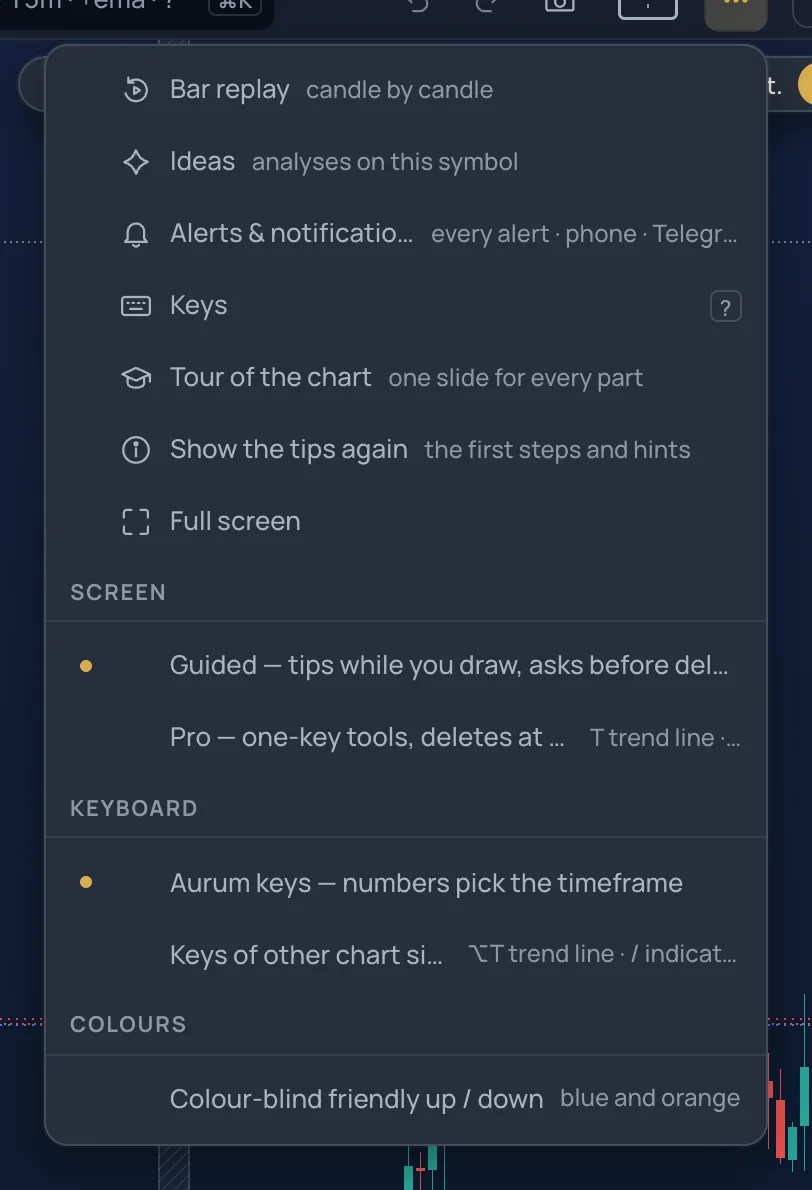
- Screen — Guided (tips while you draw, asks before deleting) or Pro (one-key tools, deletes at once with Undo). The page's layout is the same in both. Guided shows up to five timeframe chips, keeps its first steps at the bottom left and asks before a removal; a letter opens the Lens with it typed in. Pro shows up to eight chips, gives every tool a key (T trend line, H level), opens panels with G chords, undoes instead of asking, and shows one tip per visit in the status line. Everyone starts Guided.
- Keyboard — Aurum keys (the numbers pick the timeframe chips, / searches symbols) or Keys of other chart sites (Alt+T draws a trend line, the numbers type a timeframe, / opens the indicators). Under Aurum keys, pressing Alt+T once offers to switch. See Keyboard.
- Colours — the same Colour-blind friendly up / down switch as in the Look picker.
- Show the tips again — brings back the first steps and the one-time hints: at the bottom left on the Guided screen, one per visit in the status line on Pro.
Examples#
- A light chart for a screenshot. Open Look, pick Paper under Background and Ink under Candles. The page turns light with it; Theme brings the portal's own colours back.
- A cleaner legend. Open Chart settings › Legend, turn Values off under Indicators and set the chips' backdrop to Solid.
Limits and plans#
Every look, background, theme and setting on this page is free, for guests too. The look is kept in this browser, one per portal theme; what the chart shows — symbol, timeframe, indicators, drawings — is saved in the layout instead, see Layouts and the chart grid.