Watchlist
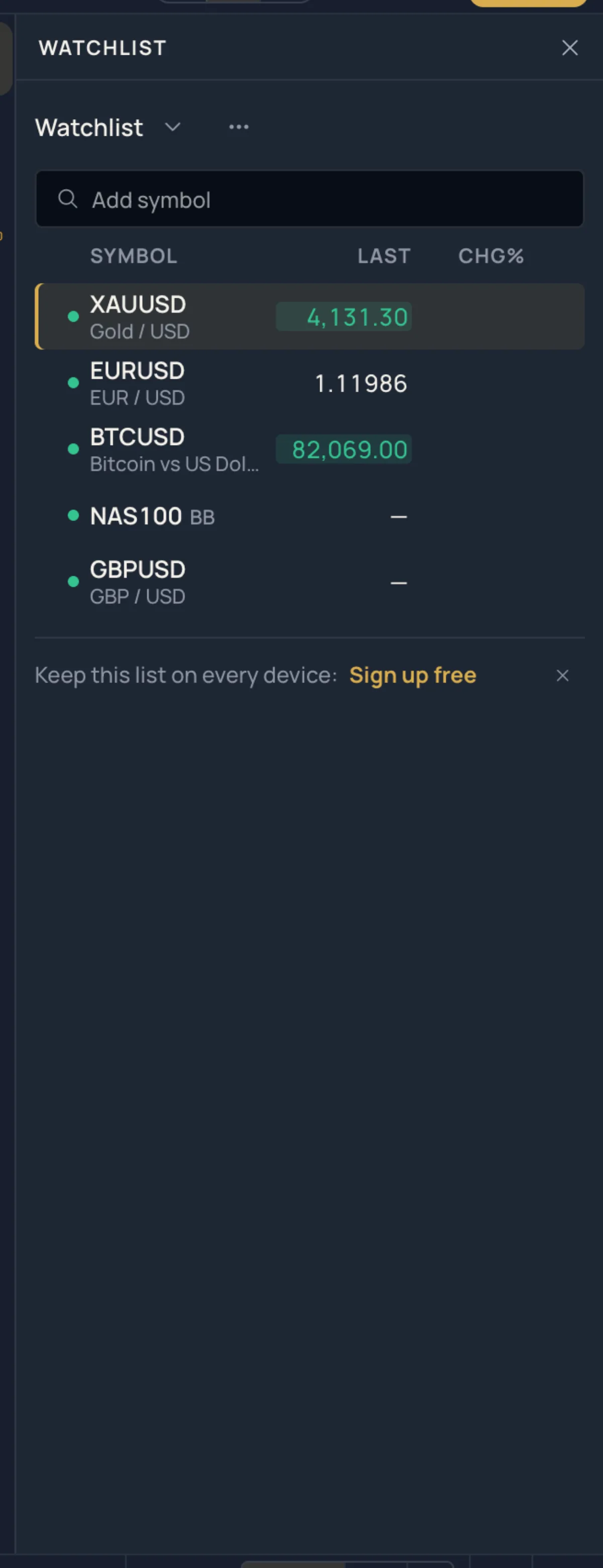
The Watchlist side list: your symbols with live prices and the day's change, several lists, the keys that step through them, and one alert for a whole list.
The watchlist is the list of symbols you follow, with their live price and today's change, at the right of the chart. It is for moving between your markets in one click and for seeing them all at a glance.
What it is#
A watchlist is a named list of up to 100 symbols; you can keep up to 12 lists. Each row shows:
| Column | What it shows |
|---|---|
| dot | Green when that market is open, an outline when it is closed. |
| Symbol | The instrument's name, with the feed code after it when the price comes from a broker (see Symbols and markets). On the Guided screen the instrument's description sits under the name. |
| Last | The live bid. While a market is closed, its last close. The cell flashes green or red for a moment when the price moves. |
| Chg | The change in price since the close before today's bar. This column appears once the list is wide enough. |
| Chg% | The same change in percent. |
The row of the symbol on the chart is marked. Prices are only requested while the list is on screen.
Where it is#
- Click Watchlist in the side rail at the right of the chart; it is the first list there. Its hint reads "Your symbols with live prices · W adds this one".
- On the Pro screen, press G then W.
- On a phone, tap Lists in the action bar and stay on the Watchlist tab.
How to use it#
- Open the list. The first time it is empty, the chart fills it with your favourite symbols, or with the chart's symbol and a few popular ones.
- Add a symbol: type in Add symbol. Matches appear as you type; click one, or press Enter to take the first. On the Pro screen, W adds the chart's symbol to the list on screen.
- Click a row to open its chart. On a phone the sheet closes and the chart changes.
- Press ] for the next symbol of the list and [ for the previous one. Both keys work on the Guided and the Pro screen, and the list wraps around at its ends.
- Reorder: drag a row by the grip at its left edge (it shows when you hover). From the keyboard, focus a row and press Alt+↑ or Alt+↓.
- Remove: the × at the right of a row, or Delete on a focused row.
With a row focused, ↑ and ↓ move along the list and Enter opens the chart.
Settings / options#
The list's name at the top is a menu: pick another list, or New list… to create one (type a name, press Create). The ⋯ button next to it holds:
| Entry | What it does |
|---|---|
| Add alert on this list… | Opens the alert dialog for every symbol of the list: one condition, and each symbol rings on its own. See Alerts. |
| Rename list… | A new name, up to 40 characters. |
| Sort A–Z | Sorts the symbols by name. |
| Copy symbols | Puts the symbols on the clipboard as text, separated by commas. |
| Paste symbols… | Adds symbols from text such as XAUUSD, EURUSD, BTCUSD. |
| Delete list | Deletes the list. The only list cannot be deleted. |
Examples#
- You trade gold, the euro and bitcoin. Create a list, choose Paste symbols…, paste
XAUUSD, EURUSD, BTCUSDand press Add. From then on ] and [ cycle through the three charts. - You want to hear when any of your ten pairs moves: ⋯ › Add alert on this list…, set one condition such as a percent move, and each pair alerts you separately, including a pair you add to the list later.
Limits and plans#
- A guest's list stays in this browser. A free account keeps the list on the account, so it is the same on every device; a list you edited as a guest joins your account's first list when you sign up. See Sign up.
- 12 lists of 100 symbols each, on every plan.
- An alert on a whole list needs an account and MillionChart Pro; the free Pro month includes it. A guest who chooses Add alert on this list… is sent to the sign-up page. See Plans.