The chart on a phone
How the chart is laid out on a phone — the compact strip, the action bar, the Draw, Lists and More sheets, touch gestures, the Halo bar, installing MillionChart as an app, and what stays on the desktop.
On a phone the chart is the same chart, composed for a thumb instead of folded from the desktop: a short strip at the top, the chart in the middle, and an action bar at the bottom whose sheets hold the tools, lists and settings. Everything you save — layouts, alerts, paper trades — is the same on every device.
What it is#
The phone layout switches on when the page is narrower than 900 pixels. Panels become sheets that slide up from the bottom, the status line folds into the More sheet, the drawing Halo becomes the Halo bar, the favourites bar becomes a strip, and a chart grid shows one chart at a time.
Where everything is#
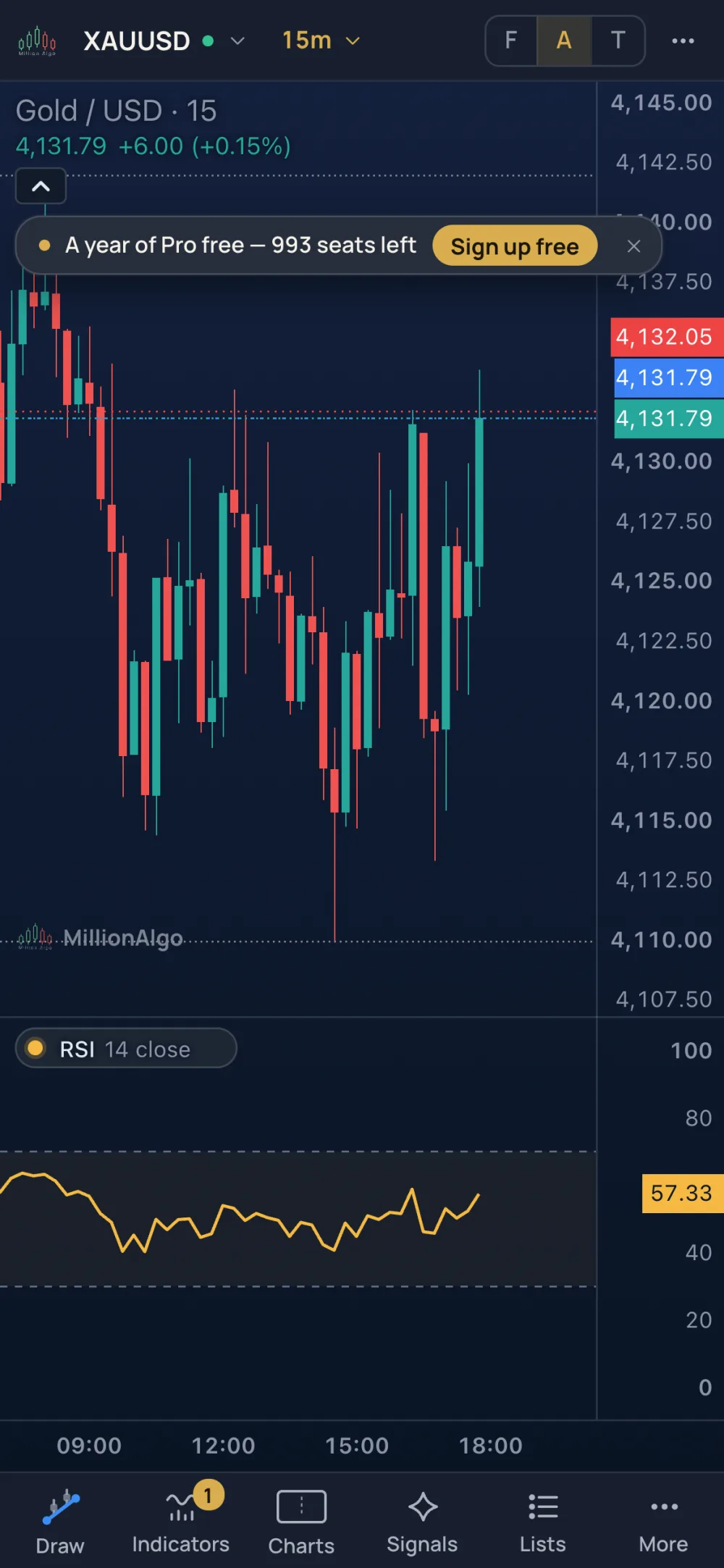
- The strip — the logo, the symbol pill (name, a dot for the market being open or closed, a chevron), the timeframe button, the Focus / Analyse / Trade mode switch and ⋯. Tap the symbol pill to search: the Lens opens as a full-height sheet. There is no separate search button.
- The action bar — Draw, Indicators (with the number on the chart), Charts, Signals, Lists (with the number of alerts) and More.
- The legend — tap an indicator's name at the top left for its settings; the Inspector opens as a sheet.
The Draw sheet#
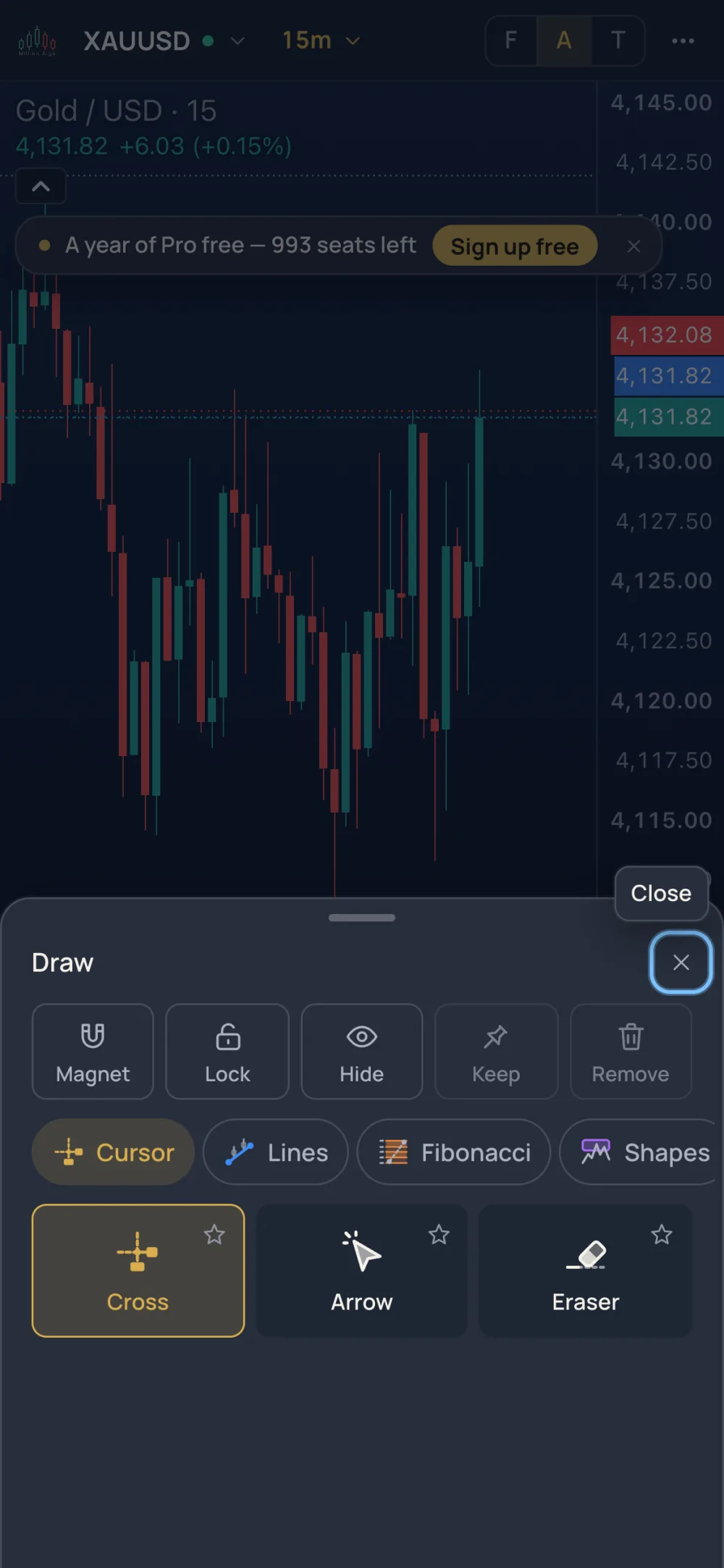
- Tap Draw. The sheet shows the switches first — Magnet (off, weak, strong), Lock, the eye that hides the drawings, Keep (the tool stays armed) and Remove with the number of drawings.
- Pick a group tab — Favourites, Cursor, the tool groups (Lines, Fibonacci, shapes and the rest), Helpers (the automatic fib, trend, levels, daily and session helpers), Emoji, Measure & zoom — then tap a tool tile. The sheet closes and the coach line says what to do: Tap Draw, then tap twice on the chart.
- Tap the star on a tile to make the tool a favourite; Favourites bar on the chart puts the starred tools in a strip at the bottom of the chart.
Indicators, Signals, Lists#
Indicators opens the same popover as on the desktop, as a sheet. Signals opens the MillionAlgo signals panel. Lists opens one sheet with three segments: Watchlist, Alerts and Trade; the Trade segment holds the practice ticket for members and, for a guest, a preview with Sign up free.
The More sheet#
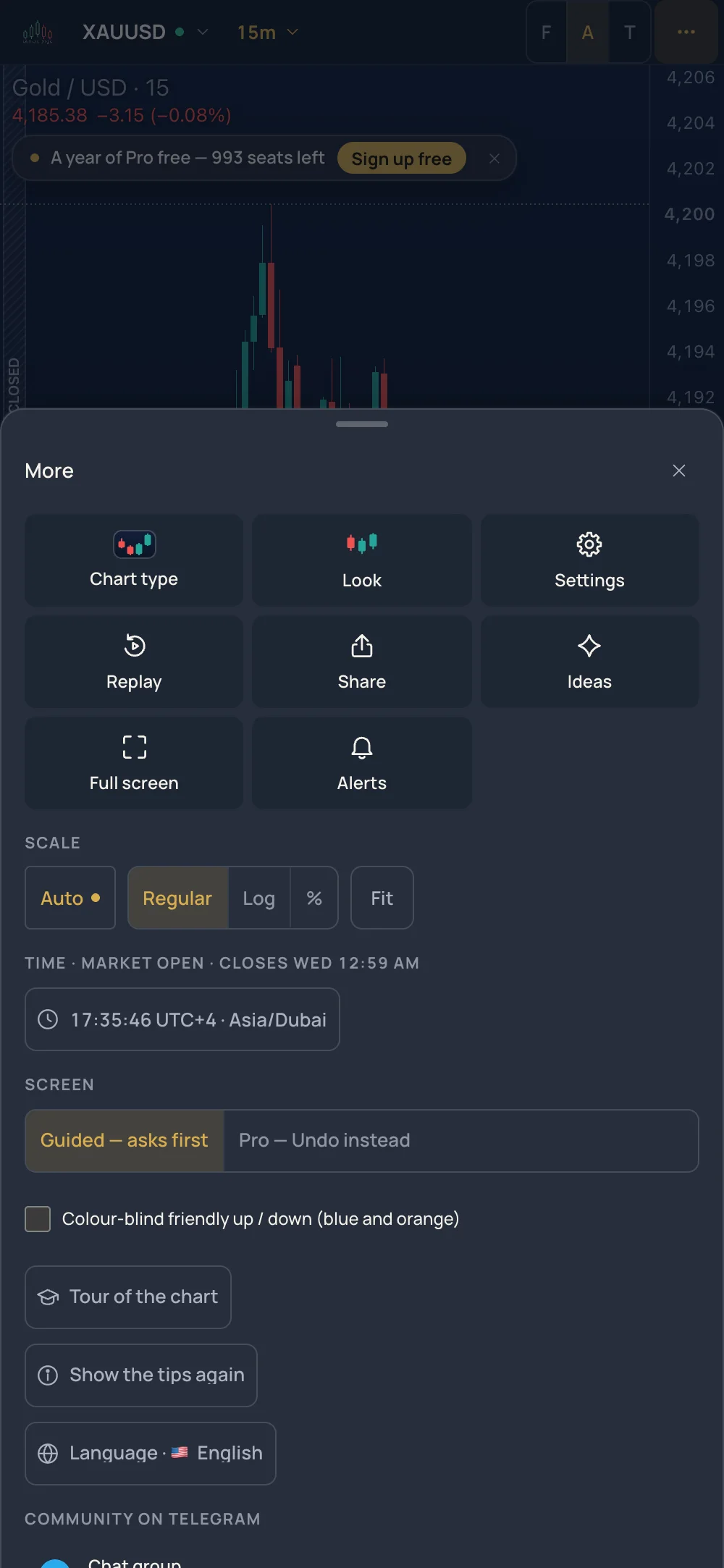
Tiles: Chart type, Look, Settings, Replay (or Leave replay), Snapshot (or Share on a phone that can share files), Ideas, Full screen and Alerts. Below the tiles come the parts of the desktop status line — Auto scale with the normal / log / percent switch and Fit, the clock with the time zone — then Screen (Guided — asks first / Pro — Undo instead), the colour-blind friendly colours, Tour, Show the tips again, Language, and Account: Sign up free and Log in for a guest, Portal menu and Plans for a member.
Touch gestures#
| Gesture | Does |
|---|---|
| Drag with one finger | Scrolls the chart |
| Pinch with two fingers | Zooms in and out around the pinch |
| Tap, after arming a tool | Places a point; most tools take two taps |
| Tap a drawing | Selects it and opens the Halo bar |
| Press and hold | Opens the menu of what is under your finger (the right-click menu of the desktop) |
| Tap the symbol pill | Opens the Lens |
The Halo bar#
When a drawing is selected, one row of chips docks above the action bar: Trade (for a member's Long or Short position — fills the ticket, sends nothing), the colour, the width, the line style, the text size, the bell for a smart line's alerts, Lock, Remove and ⋯ for every other action. A chip with choices swaps the row for them in place — tap the colour chip, then a swatch; Back returns. With several drawings selected the row reads 3 drawings selected and every chip applies to all of them; on the Guided screen Remove asks you to press again.
Several charts on a phone#
A phone shows one chart of a grid at a time. Open the Charts sheet from the action bar to add charts, or swipe between them with Previous chart and Next chart; a phone held sideways pages them from the strip (2 of 4). Up to 8 charts fit on a phone; a tablet lays out up to 6 side by side. See Layouts and the chart grid.
Installing as an app#
MillionChart installs as a web app and opens full screen on millionchart.com/chart.
- Android (Chrome) — open the browser menu and choose Add to Home screen or Install app.
- iPhone and iPad (Safari) — tap Share, then Add to Home Screen. Push notifications on an iPhone work only from the installed app, so do this before switching push on in Notifications.
What stays on the desktop#
Keyboard shortcuts need a keyboard, and hover tooltips do not exist on a touch screen — the coach line says what to tap instead. The status line, the side lists as panels, the docked Inspector, the desktop Halo, the floating favourites bar and the grid of tiles are desktop forms; each has its phone form above.
Related#
- The chart, part by part
- How drawing works
- Alerts — push on this device and Telegram
- Keyboard shortcuts